

Testing
Test devices let you safely test ads on specific devices without affecting your revenue data. Register a device once by its advertising identifier (IDFA for iOS, GAID for Android) and choose which apps it covers.
Test devices are managed for your whole account on the Test Devices page under Dev Tools. Each device record covers either all of your apps or a set of apps that you select.
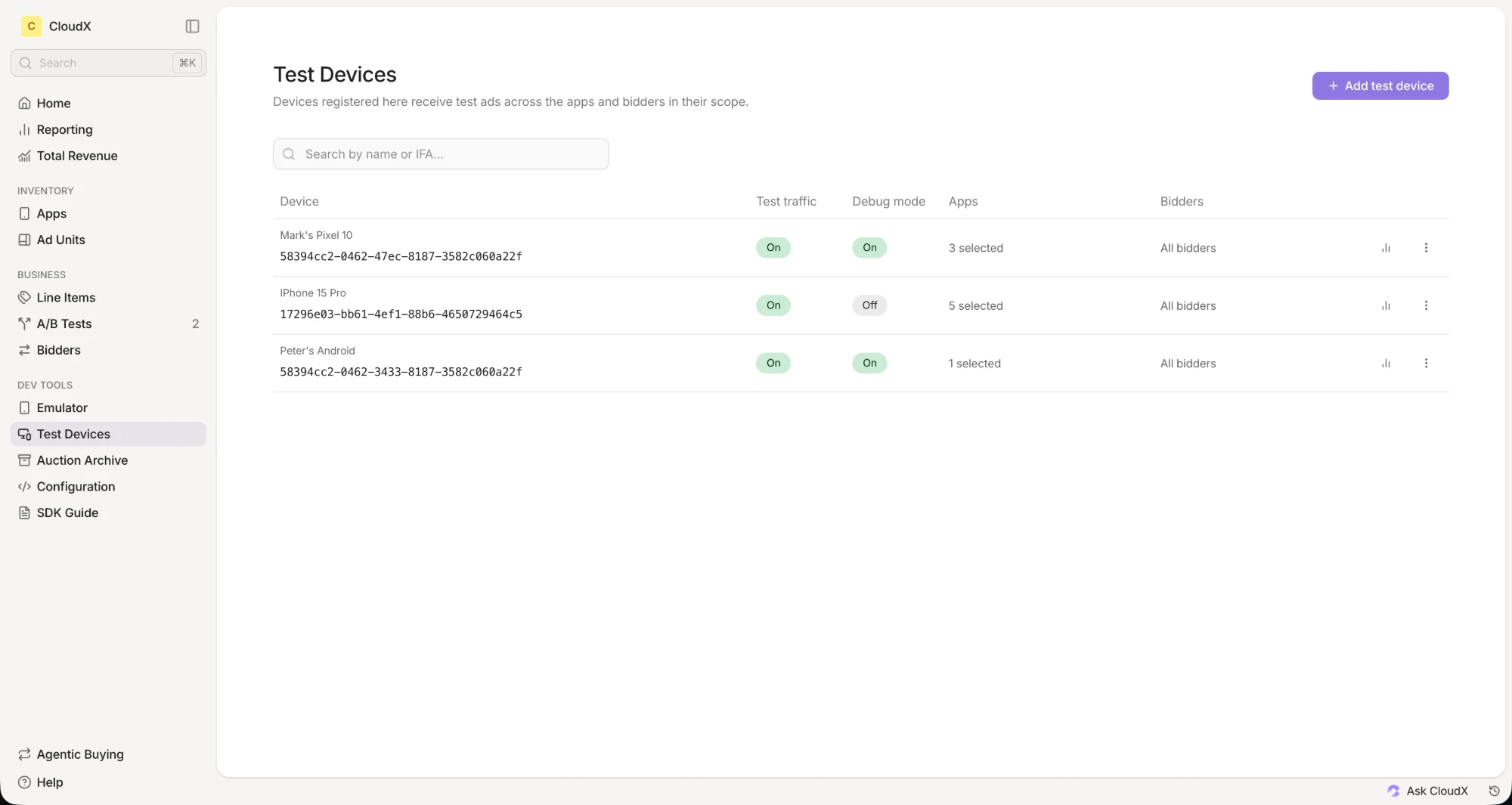
Add a test device
- Go to Dev Tools → Test Devices
- Click Add test device
- Enter your Device IFA (IDFA or GAID)
- Optionally add a Device Name to make the device easier to identify
- Choose the App scope:
- All apps: the device covers every app in your account, including apps you add later
- Selected apps: the device covers only the apps you select. Search by app name, platform, bundle ID, or app key.
- Configure your settings using the toggles (see below)
- Confirm that you own or are authorized to use this device advertising identifier
- Click Add Device
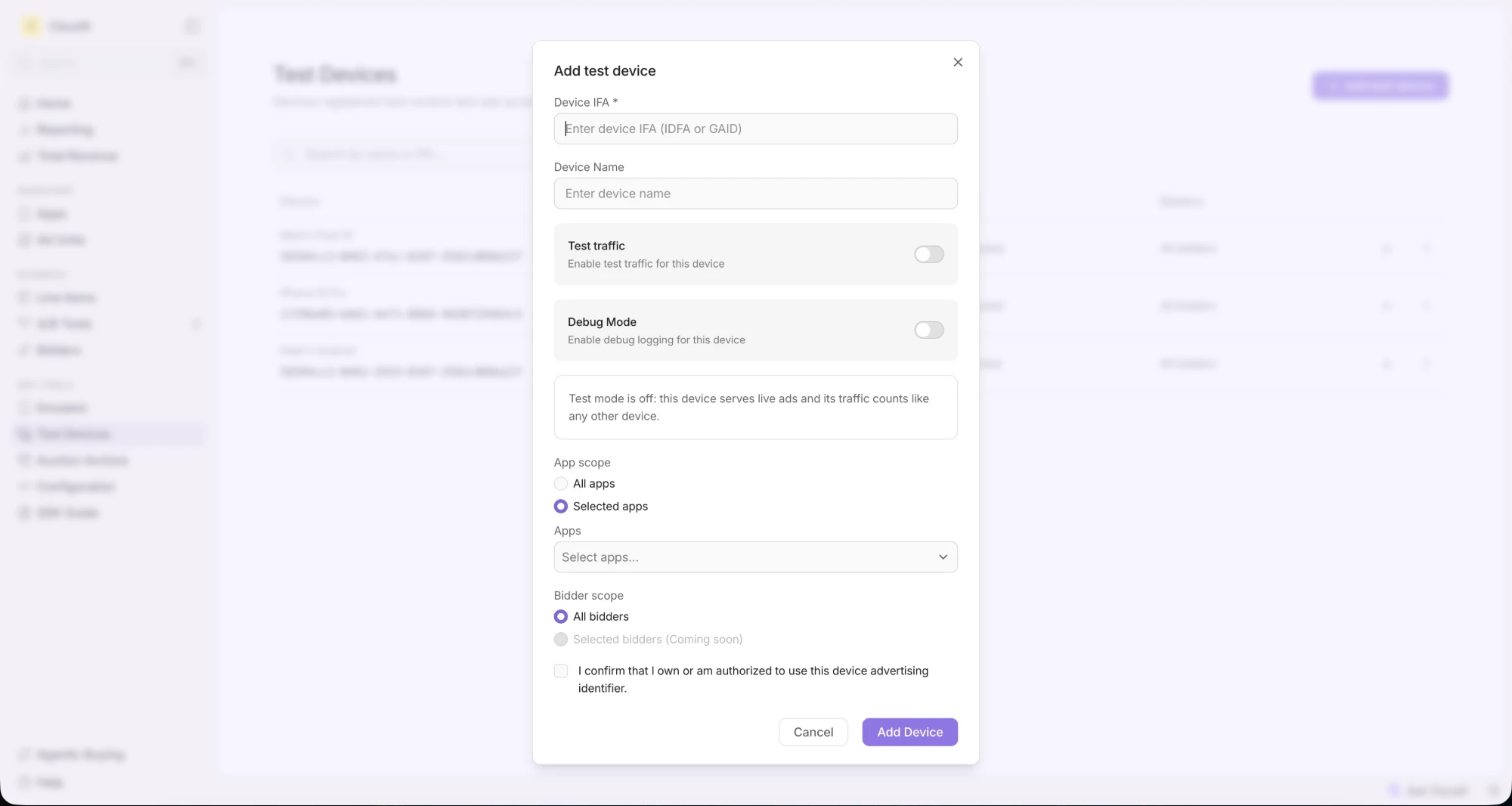
Test devices apply to all bidders.
To change a device, click its row. To remove a device, open its ⋮ menu and select Delete. After you delete a device, its registration no longer marks its traffic as test.
One record per device and app
A device IFA can have more than one record, but each app can be covered by only one record for that IFA:
- An All apps record must be the only record for its IFA. To change it, edit that record.
- Two Selected apps records for the same IFA cannot share an app. The form disables apps that another record for the IFA already covers.
Test devices for one app
To see the test devices that apply to an app, open the app page, click the three dots ⋮ menu in the top right, and select Test devices. The list shows each record that covers the app, including All apps records. To add or change a device, click Manage in Dev Tools.
Configure
Control how each test device behaves using these settings:
| Setting | Description |
|---|---|
| Test traffic | When on: the device receives test ads instead of live ads for the apps in its scope, and its data is excluded from revenue reports. Use for visual QA and ad integration testing. When off: the device registration no longer marks its traffic as test. Its requests are still test requests when it runs on the iOS Simulator or starts the SDK in test mode (see When Test Bidder bids). |
| Debug Mode | When on: the device gathers diagnostic logs for troubleshooting integration issues. Debug Mode also bypasses the auction server cache, so changes to test traffic take effect immediately. |
Auction Archive
The Auction Archive keeps the full request and response of your test auctions, so you can see exactly what CloudX and each bidder sent and received. Use it to check why an ad did or did not fill, which bidder won, and what your app sent in the request.
To open it, go to Dev Tools → Auction Archive.
Which auctions are archived
The archive stores test auctions only. It never stores production traffic. An auction is a test auction when it comes from a test device with Test traffic on, from the iOS Simulator, from an SDK session in test mode, or from the Dashboard emulator. See When Test Bidder bids.
The archive shows the latest 1,000 test auctions for your account. Older auctions drop off the list as new ones arrive.
Find an auction
Each row shows the auction ID, time, app, ad unit, duration, number of rounds and bids, test source, winner, SDK version, device platform, and device country. Test source shows the test device name, or its IFA if it has no name. Auctions that did not come from a device show Emulator.
- Search by auction ID, app, or device.
- Filter by test source, app, ad unit, device platform, or device country.
- Group rows by app, test source, ad unit, device platform, or device country.
- Columns lets you add, hide, and reorder columns. Click a column header to sort.
- Click Refresh to load auctions that arrived after you opened the page.
Auction details
Click a row to open the auction. The details show:
- Auction request: the request CloudX received from the SDK
- Auction response: the response CloudX returned to the SDK
- Bidder calls: the request CloudX sent to each bidder and the bidder’s response, for each round
Download auctions
To download one auction, open it and click the download button. To download several, select their rows and click Download selected. You can select up to 100 auctions at a time. The download is a ZIP file with one JSON file for each auction. You can attach it to a support request.
Auctions from one test device
To see only the auctions from one test device, click the chart icon (View auction data) in the device’s row on the Test Devices page. The list has the same columns, filters, and details as the Auction Archive. It shows only this device’s auctions from the latest 1,000 test auctions for your account.
Network limitations on the iOS Simulator
Digital Turbine cannot serve an ad on the iOS Simulator: its SDK can crash there, so CloudX omits the bidder from the list it provisions to Simulator sessions and never initializes the adapter. Test Digital Turbine on a physical iOS device. See the known issues for details.
Test Bidder
CloudX includes a built-in Test Bidder that returns sample creatives, so you can verify loading, rendering, and callbacks without live demand. It is enabled by default on every account.
When Test Bidder bids
Test Bidder responds only to test requests. It never bids on production traffic.
A request is a test request when any of the following applies:
- The device is registered as a test device with Test traffic on
- The session is running on the iOS Simulator
- The SDK session was started in test mode
Test mode is server-controlled. See the test mode section of your iOS, Android, Flutter, or React Native integration guide.
Reporting
Test traffic is excluded from revenue reports, so Test Bidder never appears in your production numbers. To review its activity, switch your report to test traffic. The Dashboard, the CLI, and the MCP server all report production and test traffic separately.
Turn off Test Bidder
To stop Test Bidder serving on an app, including on your registered test devices, add it to Disabled bidders on the app’s Edit page. See Apps.
Finding your device ID
You need your device’s advertising identifier to register it as a test device.
iOS (IDFA)
Finding your IDFA requires a third-party app. My Device IDFA by AppsFlyer and Adjust Insights by Adjust are both available free on the App Store.
Android (GAID)
- Open Settings on your Android device
- Tap Security and privacy → Ads
- Your GAID appears under Advertising ID