

Ad units
Ad units represent specific locations in your app where ads are displayed.
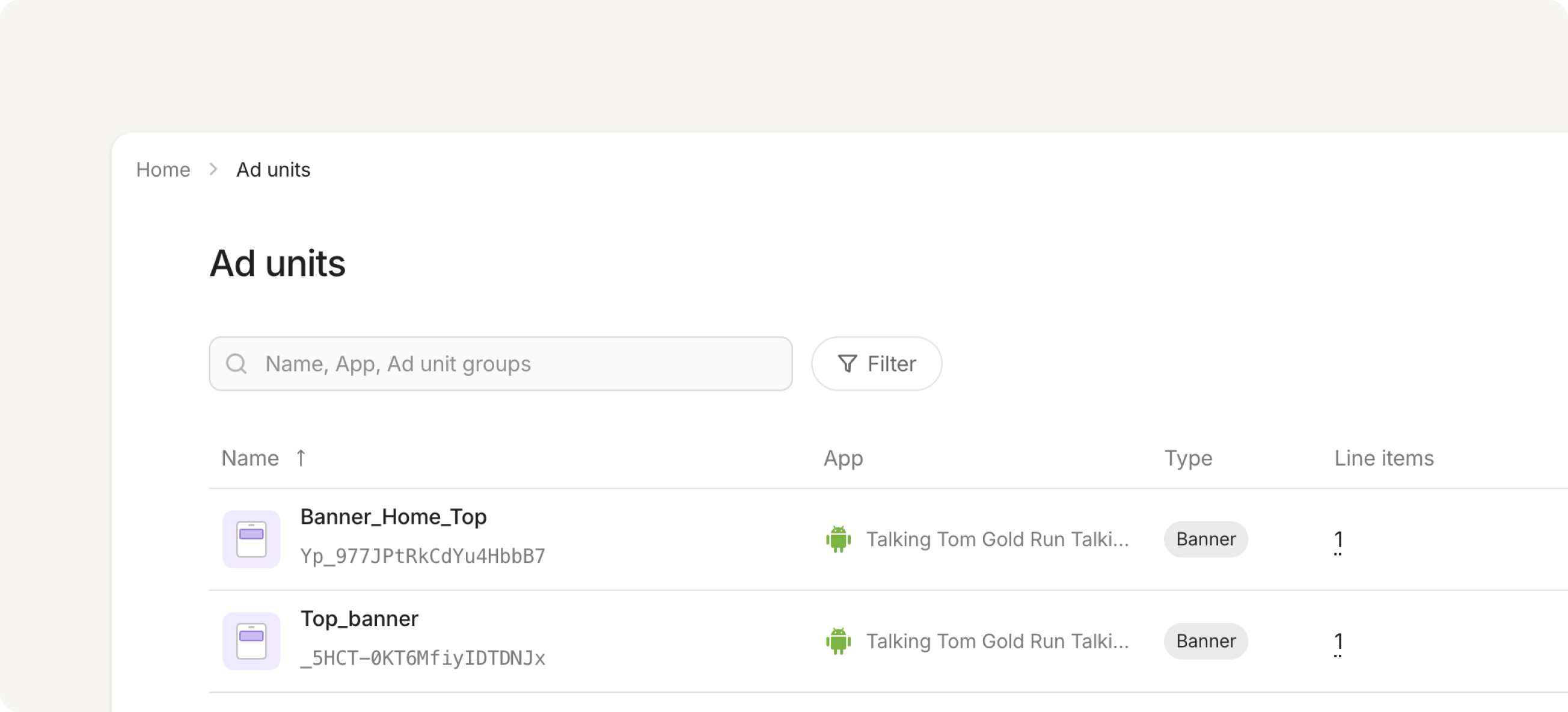
Create an ad unit
You can create ad units from the Ad Units page in the sidebar or directly from an App page. Creating from an app page pre-selects the app for you.
To create an ad unit:
- Click + Add ad unit
- Enter a name for your ad unit
- Select which app this ad unit belongs to (if not already selected)
- Choose an ad unit type
- Configure format-specific settings
- Click Save
Ad unit types
| Type | Size | Description |
|---|---|---|
| Banner | 320x50 | Standard banner ads with auto-refresh |
| MREC | 300x250 | Medium rectangle ads for content feeds |
| Interstitial | Full-screen | Full-screen ads for natural transitions |
| Rewarded | Full-screen | Video ads that reward users for watching (e.g., extra lives, in-game currency) |
| Native | Flexible | Ads that match your app’s look and feel |
| App Open | Full-screen | Ads shown when users open or return to your app |
Ad format settings
1. Banner, MREC:
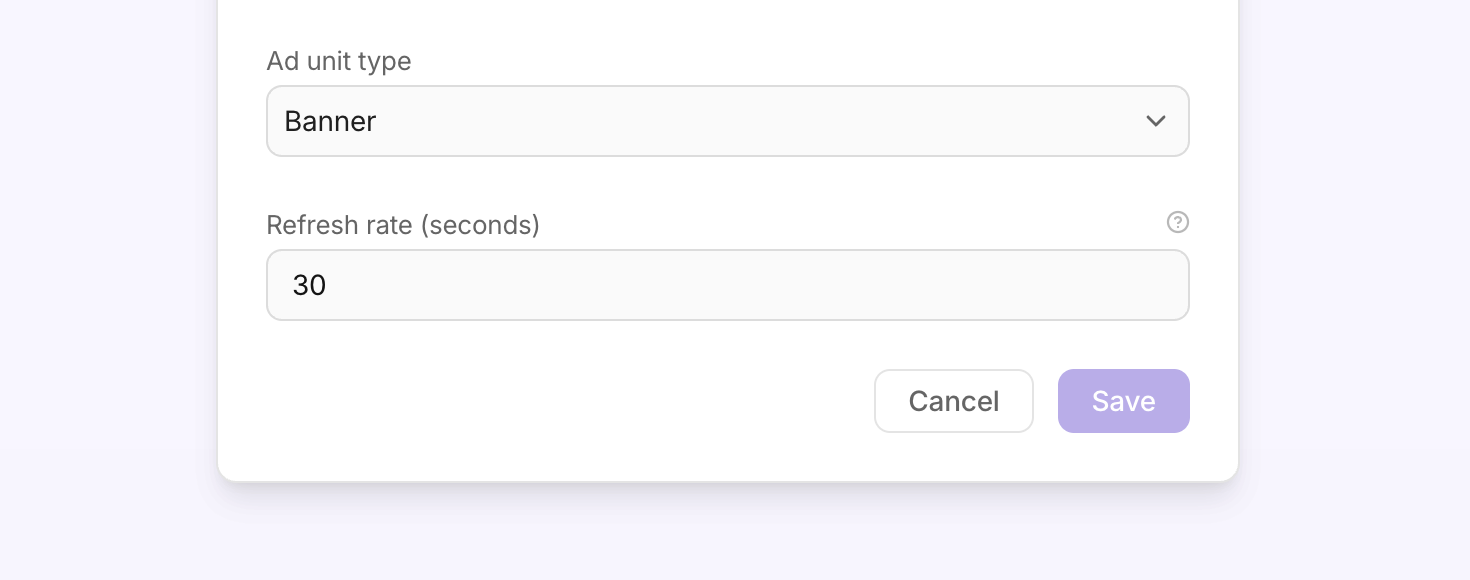 Refresh rate - how often the banner ad refreshes, measured in seconds (default: 30). Common values are 30, 60, or 90 seconds; the minimum is 1 second. To stop refreshing entirely, use the Disable auto-refresh checkbox — entering 0 is not accepted.
2. Rewarded:
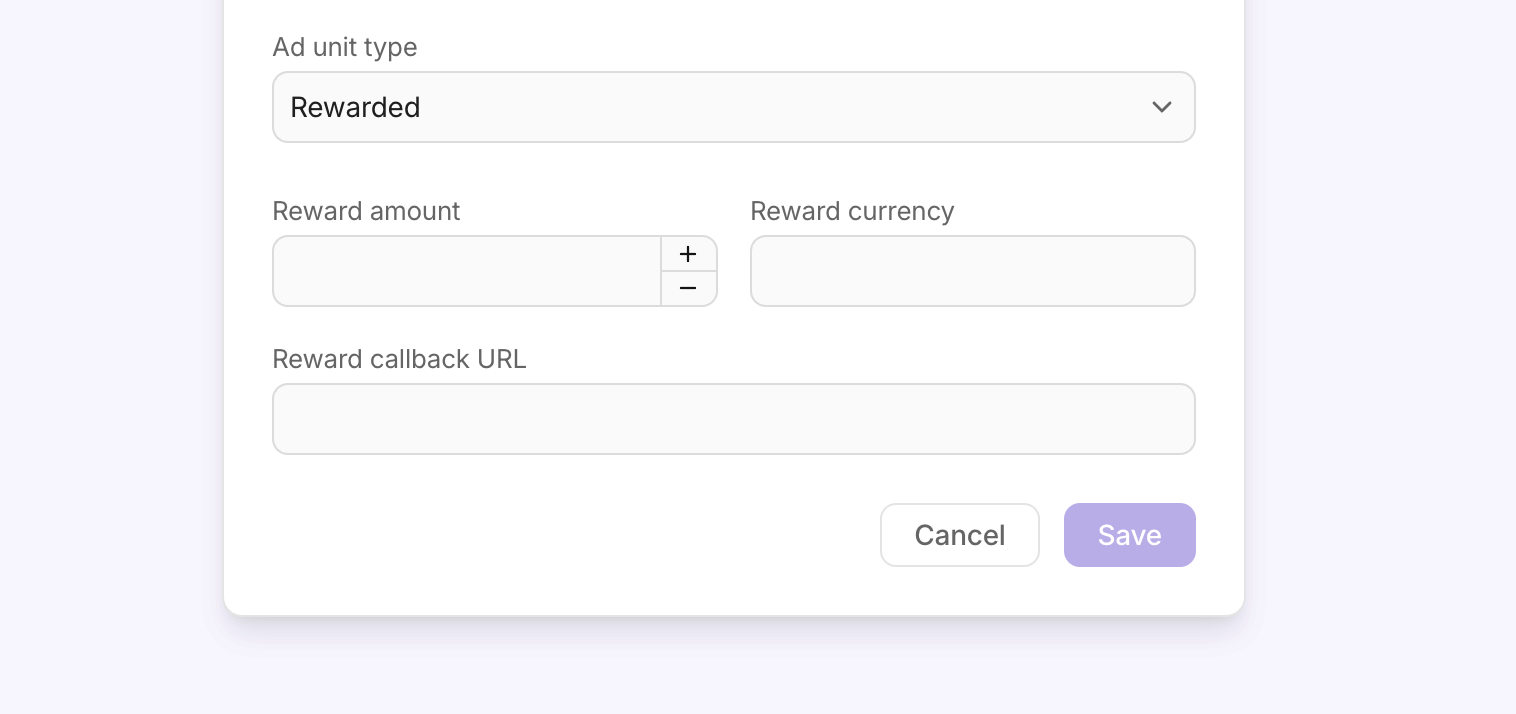
-
Reward amount - the number of items the user receives after watching the ad. For example, 10 coins or 1 extra life.
-
Reward currency - the name of the reward. For example, coins, gems, or extra lives.
-
Reward callback URL - a server-to-server callback URL that CloudX calls when a user completes a rewarded ad. Use this to verify rewards on your backend before granting them to the user. See Rewarded callbacks for supported macros.
Ad position signal
The Ad position setting controls the position signal CloudX sends to bidders for an ad unit. It helps bidders understand where the ad appears on screen and can improve how they value the opportunity.
Keep Default (recommended) unless the format default does not match where the ad actually appears. Default (recommended) uses these format-specific defaults:
- Banner sends
1(above the fold). - MREC omits the position signal.
- Fullscreen formats send
7(full screen).
The value is sent in banner.pos or video.pos, depending on the media type in the bid request.
| Value | Position |
|---|---|
0 | Unknown |
1 | Above the fold |
2 | Locked or fixed position |
3 | Below the fold |
4 | Header |
5 | Footer |
6 | Sidebar |
7 | Full screen |
To set an override:
- Open Ad Units
- Create an ad unit or select one to edit
- Choose the value that matches the ad’s actual on-screen position
- Click Save or Save changes
Selecting Default (recommended) on an existing ad unit clears its saved override. The setting is shown only for supported ad formats; changing to an unsupported format also clears the override.
Frequency caps
Use frequency caps to limit how many impressions the same user can see from a specific ad unit within a chosen time window.
CloudX currently supports these windows for ad-unit caps:
hourdaysession
Configure an ad-unit cap
- Open Ad Units
- Select the ad unit you want to update
- In the Frequency cap section, enable the cap
- Set Max impressions
- Select a Time window
- Click Save changes
Example:
2 / hourmeans the same user can see at most 2 impressions from that ad unit in a single hour
How enforcement works
Frequency caps are checked before the auction, but counted on impression.
That means:
- a request does not burn cap just because an auction ran
- the counter increments only after an ad is actually shown
- once the user is over cap, capped inventory returns no fill
Notes
- Session caps require the SDK to send a session ID with the ad request.
- Ad-unit caps are evaluated independently from segment caps. If both are configured, the request must pass both checks to serve.
- The Dashboard also supports segment caps and a default cap for unsegmented traffic from the Segments area.
Rewarded callbacks
CloudX sends an HTTP GET request to your callback URL each time a user completes a rewarded ad. Use this to verify the reward on your server before crediting the user.
In the Reward callback URL field, paste a URL that includes any of the macros below. CloudX replaces each macro with the actual value before making the request.
Example:
https://your-server.com/rewards?event_id={EVENT_ID}&token={EVENT_TOKEN}&amount={AMOUNT}¤cy={CURRENCY}&data={CUSTOM_DATA}&revenue={REVENUE}
Supported macros
| Macro | Description | URL-encoded |
|---|---|---|
{EVENT_ID} | Unique identifier for this reward event. | No |
{EVENT_TOKEN} | Verification token: SHA1(EVENT_ID + event_key), where event_key is the secret configured on the ad unit. Recompute the hash server-side from the received {EVENT_ID} and your key, and reject the callback unless it matches — this proves the call was generated by CloudX rather than forged. To also guard against replays, store processed {EVENT_ID}s and reject duplicates. | No |
{AMOUNT} | Reward amount configured on the ad unit (numeric). Always present, defaults to 0. | No |
{CURRENCY} | Reward currency name configured on the ad unit. | Yes |
{CUSTOM_DATA} | Arbitrary string passed by the SDK. Use this to attach context such as game level or user state to the callback. | Yes |
{REVENUE} | Per-impression revenue value (numeric). Defaults to 0 if not available. | No |
Macros marked URL-encoded are percent-encoded so they are safe to use as query parameter values. If a macro’s value is not set, it is replaced with an empty string — the placeholder is never sent literally.
Retry behavior
CloudX retries the callback up to 2 times if your server times out. Non-timeout errors (4xx, 5xx) are not retried. Make sure your endpoint responds within a few seconds.
After creating an ad unit
Once your ad unit is created:
- Reference it in your SDK code using the ad unit ID, which you can copy from the ad unit’s page
- Create line items to define which demand sources serve ads and at what price
- Configure network mappings to connect your ad unit to demand partners