

Meta Audience Network
Use this guide to configure Meta Audience Network bidding in CloudX.
Keep using the platform integration guides for SDK installation and ad loading:
For platform-specific Meta adapter requirements, see:
Overview
Use the following values:
Meta App IDin CloudX app mappingMeta Placement IDin CloudX ad-unit mapping- CloudX
app_keyand CloudX ad unit identifiers in app code
CloudX collects Meta bidder tokens internally, so you do not need to fetch Meta bidder tokens in your app code.
Step 1. Complete Meta-side setup in Monetization Manager
- Sign in to Meta and open Monetization Manager.
- Add the app or property you want to monetize.
- Create placements for each format you want to use.
- Copy the Meta App ID and each Placement ID.
- Complete Meta review and payout setup before expecting live demand.
Official Meta references:
Step 2. Enable Meta in CloudX
Go to Operations -> Bidder Configuration and make sure Meta Audience Network is enabled for your account.
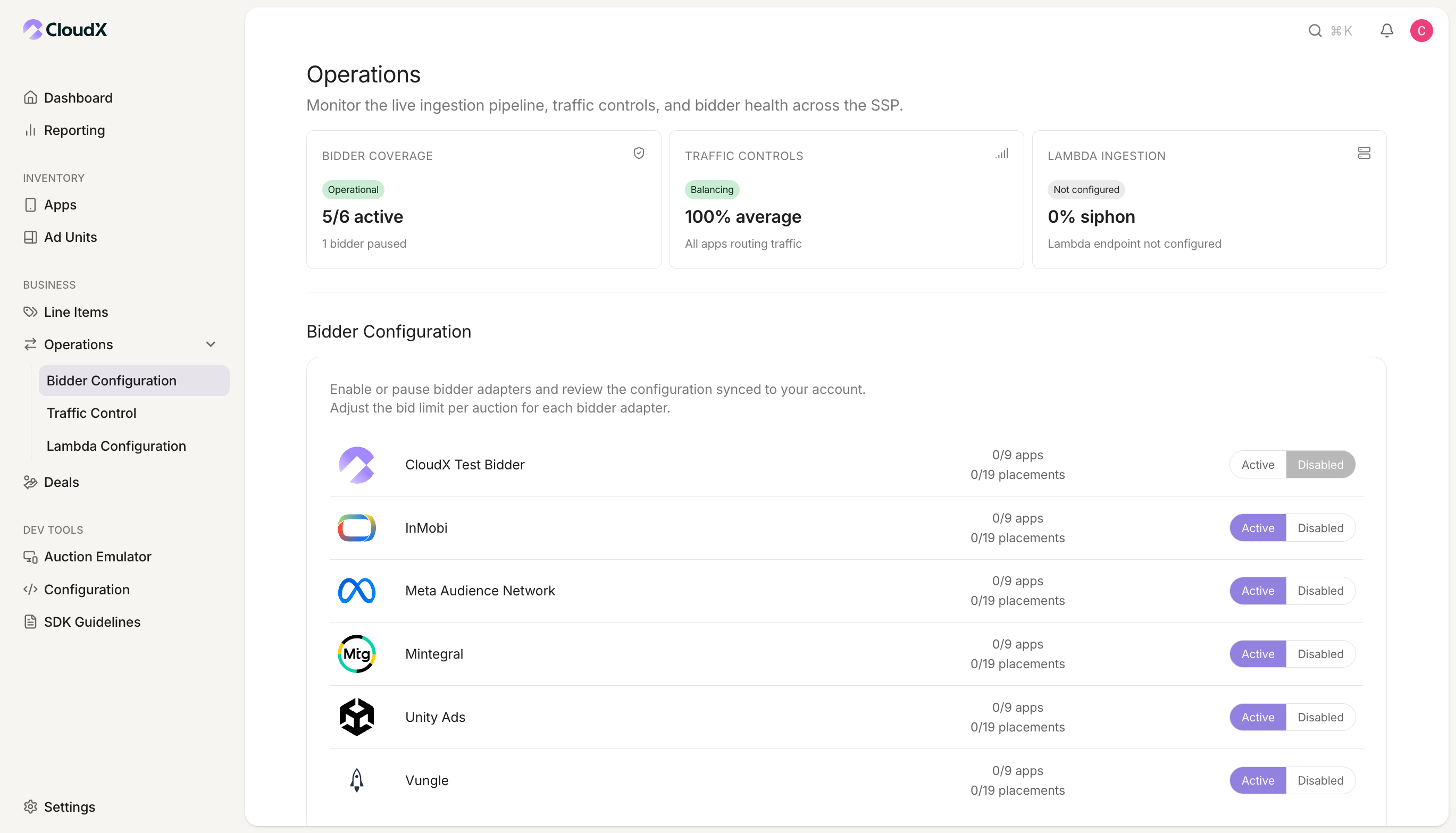
If Meta Audience Network is disabled, CloudX will not request bids from Meta even if your mappings are correct.
Step 3. Configure your CloudX app
Go to Inventory -> Apps and create or open the app that matches your mobile application.
| CloudX field | Value to enter | Required |
|---|---|---|
Meta App ID | Your Meta Audience Network App ID | Yes |
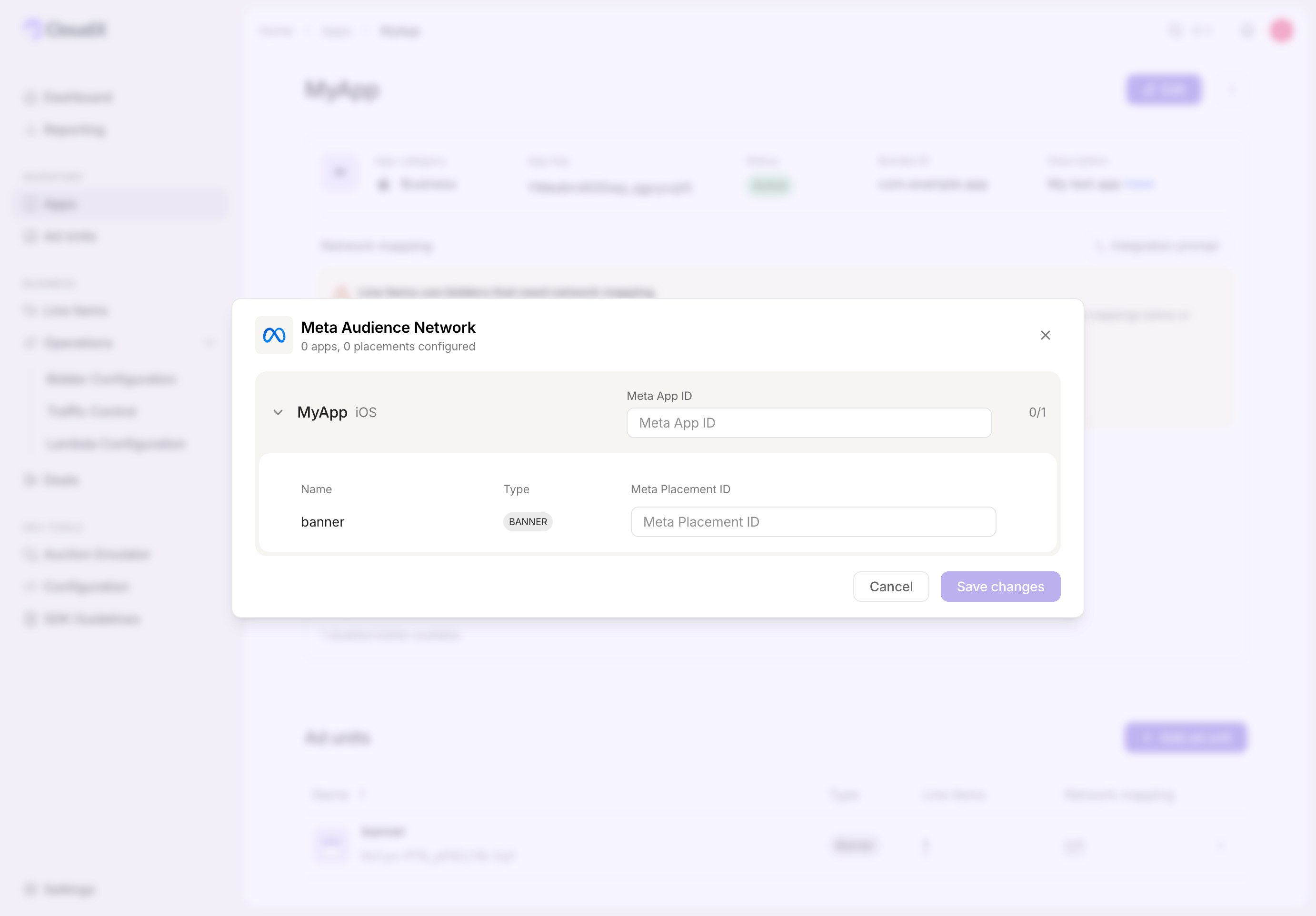
Also copy the CloudX app_key from the app details page. Use the CloudX app_key in Android or iOS code. Do not use the Meta App ID as the CloudX SDK app key.
Step 4. Configure CloudX ad units
Go to Inventory -> Apps -> [Your App] -> Ad units and add the mapping below for each eligible ad unit.
| CloudX field | Value to enter | Required |
|---|---|---|
Meta Placement ID | The Meta placement ID for that ad unit and format | Yes |
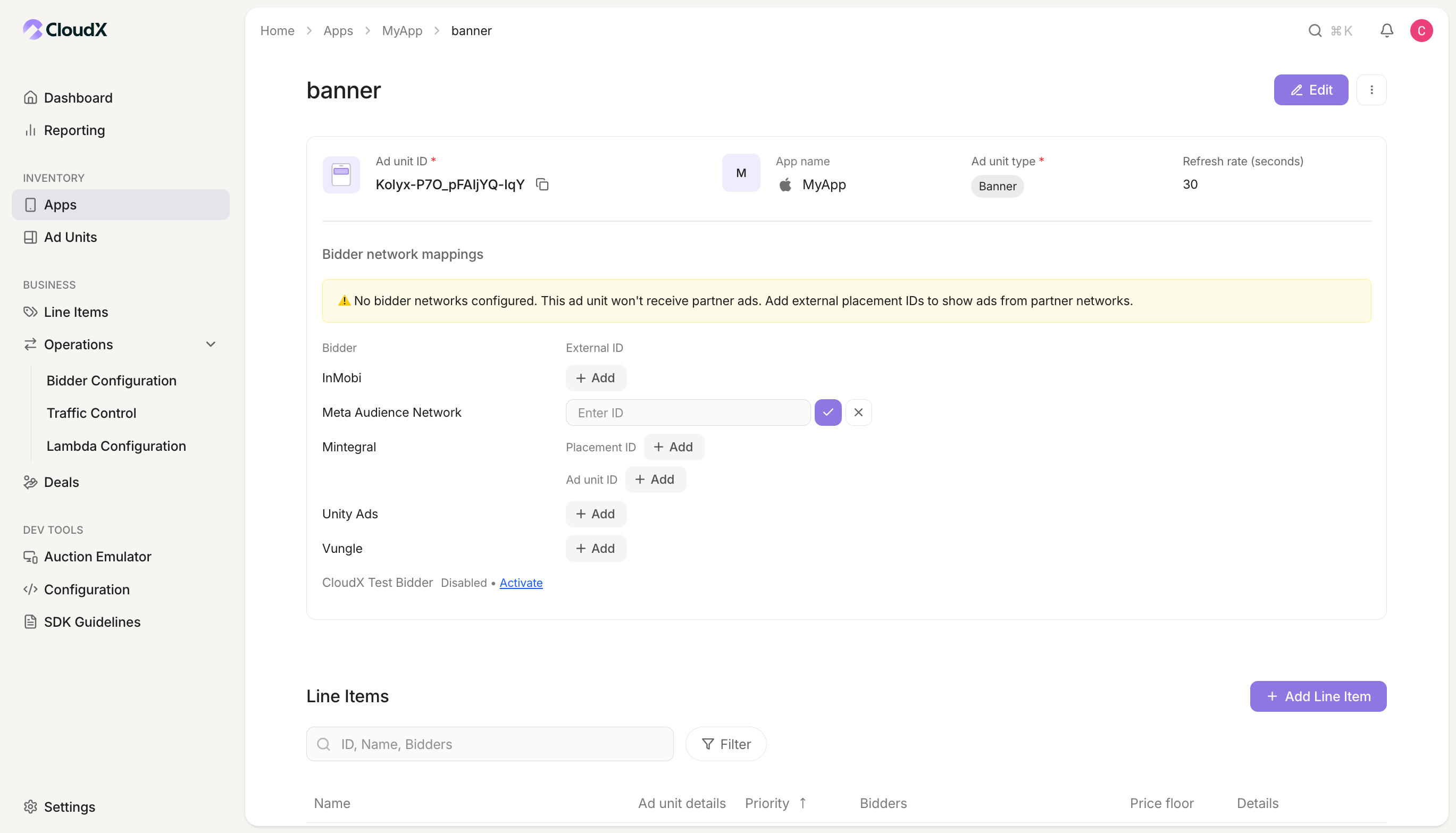
- Treat
Meta Placement IDas required on both platforms. - Match the Meta placement to the CloudX ad-unit format and size.
- For Banner and MREC, use a placement created for the correct size.
Placement format mapping
Create each Meta placement with the format that matches the CloudX ad unit it maps to:
| Meta placement format | CloudX ad unit |
|---|---|
| Banner | Banner |
| Native | Native or MREC |
| Native Banner | Banner |
| Interstitial | Interstitial |
| Rewarded video | Rewarded |
A native banner is a compact native creative — app icon, text, and call to action, with no large media view — that renders in a banner slot. Meta serves it from Native Banner placements, which map to CloudX Banner ad units.
Step 5. Add Meta line items
Create line items for bidder Meta Audience Network on each CloudX ad unit where Meta should compete.
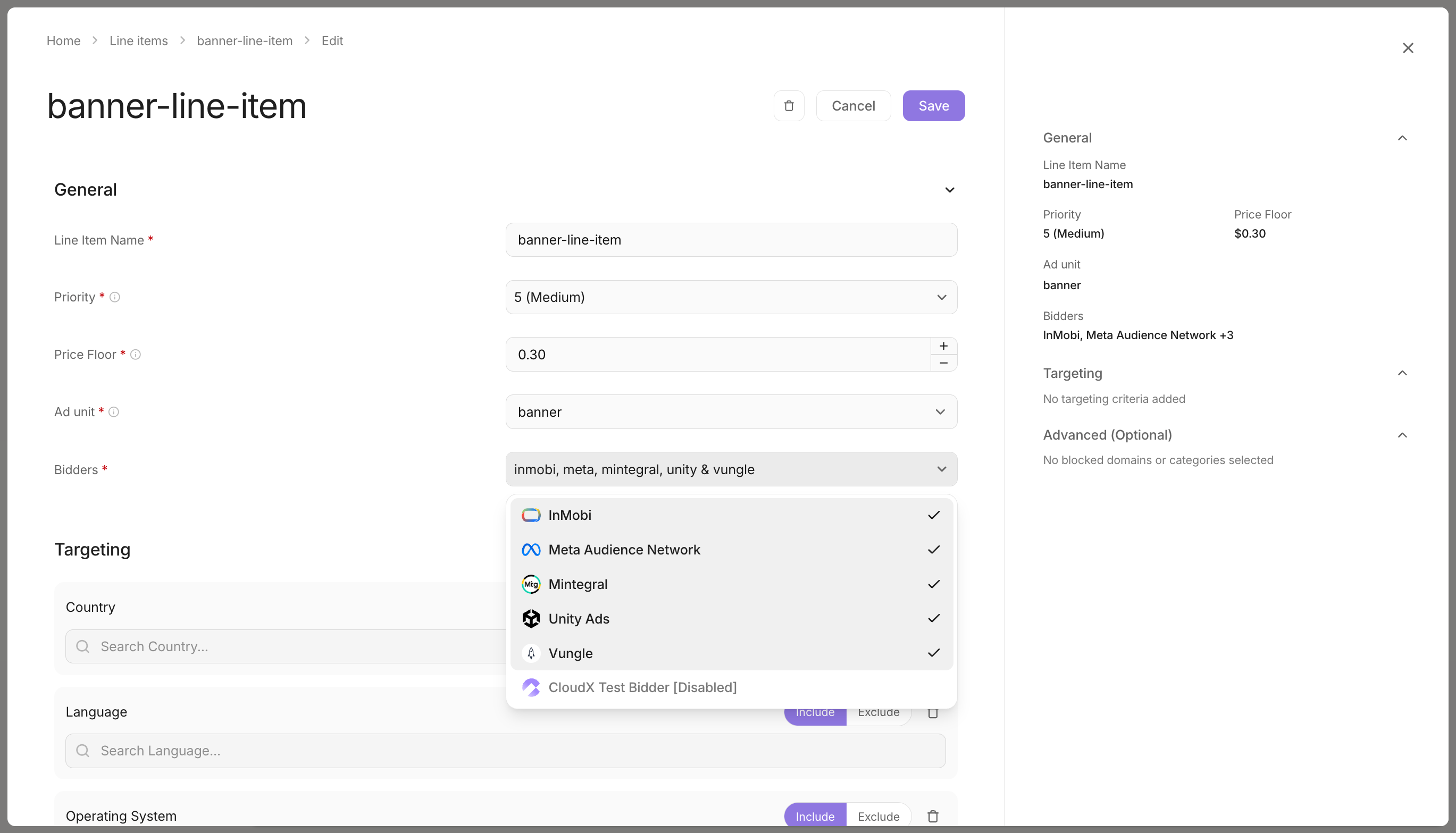
- Use bidder
Meta Audience Network - Match the line item to the correct ad format
- Repeat the setup for each ad unit where Meta should bid
Step 6. Finish app integration
Complete the integration and adapter setup for your platform:
- Android integration guide
- iOS integration guide
- Unity integration guide
- Android Meta Adapter page
- iOS Meta Adapter page
- Unity Meta Adapter page
In app code:
- Initialize CloudX with the CloudX
app_key - Load ads using CloudX ad unit identifiers
- Do not pass Meta App IDs or Meta Placement IDs into app code
- For Interstitial and Rewarded ads, call
show()only after the ad is ready
Step 7. Test and validate
- Enable test mode for your device in CloudX.
- Build and run the app with the CloudX
app_keyand the correct CloudX ad unit identifiers. - Request an ad from each mapped ad unit.
- Confirm that the ad loads and that Meta participates or wins where expected.
Troubleshooting
Meta is not bidding
Check the following first:
Meta Audience Networkis enabled inOperations -> Bidder Configuration- The app has a valid
Meta App ID - The ad unit has a valid
Meta Placement ID - A
Meta Audience Networkline item exists for the ad unit - The Meta placement matches the ad format and size
Meta bids but the ad does not render
Check the following:
- Your app is using the CloudX
app_key, not a Meta ID - Your app is loading the intended CloudX ad unit
- Interstitial and Rewarded ads are only shown after they finish loading
- On iOS, the requirements from the Meta Adapter page are complete
Ads render but Meta reports no impressions
Meta counts a native impression only when the placement format’s required asset is rendered and visible on screen — the media view for Native, the app icon for Native Banner. The ad can display normally while every impression is silently discarded. Verify the required asset binding on the Android or iOS Meta adapter page, and confirm the placement format mapping above.
Placement mapping looks correct but Android still fails to load
On Android, missing or empty Meta placement data causes the adapter load to fail. Re-check the ad-unit-level Meta Placement ID mapping in CloudX.
Placement mapping looks correct but iOS behavior is inconsistent
The current iOS adapter can fall back internally in some cases, but you should not rely on that behavior. Always configure Meta Placement ID explicitly for every ad unit.
Mapping Reference
| CloudX field | Internal key | Scope |
|---|---|---|
Meta App ID | app_id | App |
Meta Placement ID | placement_id | Ad unit |
If you see audienceNetwork in internal logs or backend configuration, that refers to the same Meta bidder.