> ## Documentation Index
> Fetch the complete documentation index at: https://docs.cloudx.io/llms.txt
> Use this file to discover all available pages before exploring further.
# Start.io (BETA)
> Use this guide to enable Start.io bidding in CloudX.
Start.io is currently beta in CloudX. If it is not visible in the `Bidders` section, contact your CloudX account manager for beta access.
Keep using the platform integration guides for CloudX SDK installation and ad loading:
* [Android integration guide](/en/android/integration)
* [iOS integration guide](/en/ios/integration)
Start.io is a server-side bidder: CloudX requests bids on the server and renders winning creatives with the CloudX SDK's built-in renderer. There is no Start.io SDK or adapter to add to your app.
## Overview
Start.io has no credentials or network mappings to configure in CloudX: no Start.io account ID, publisher ID, app ID, or placement ID. After completing Start.io onboarding, enabling the bidder and adding line items is the entire CloudX setup.
Start.io currently bids on Banner (320x50) and MREC (300x250) ad units. Additional formats will be enabled in a future rollout.
## Step 1. Complete Start.io onboarding and update app-ads.txt
Contact your Start.io account manager before enabling live traffic. If you do not have a Start.io contact, ask your CloudX account manager to coordinate the onboarding.
Provide Start.io with the apps you plan to enable:
* Android package names, such as `com.example.app`
* Numeric App Store IDs for iOS apps, such as `6448392061`
Start.io will provide the current app-ads.txt lines for your publisher account. These lines are publisher-specific because the Start.io direct entry contains your unique publisher ID.
Publish the supplied lines at `https://yourdomain.com/app-ads.txt`, where `yourdomain.com` is the developer website listed in the App Store or Google Play. Keep the existing entries for CloudX and other networks.
## Step 2. Enable Start.io in CloudX
Go to `Bidders` in the dashboard navigation, select `Start.io` in the bidder list, and click `Enable`.
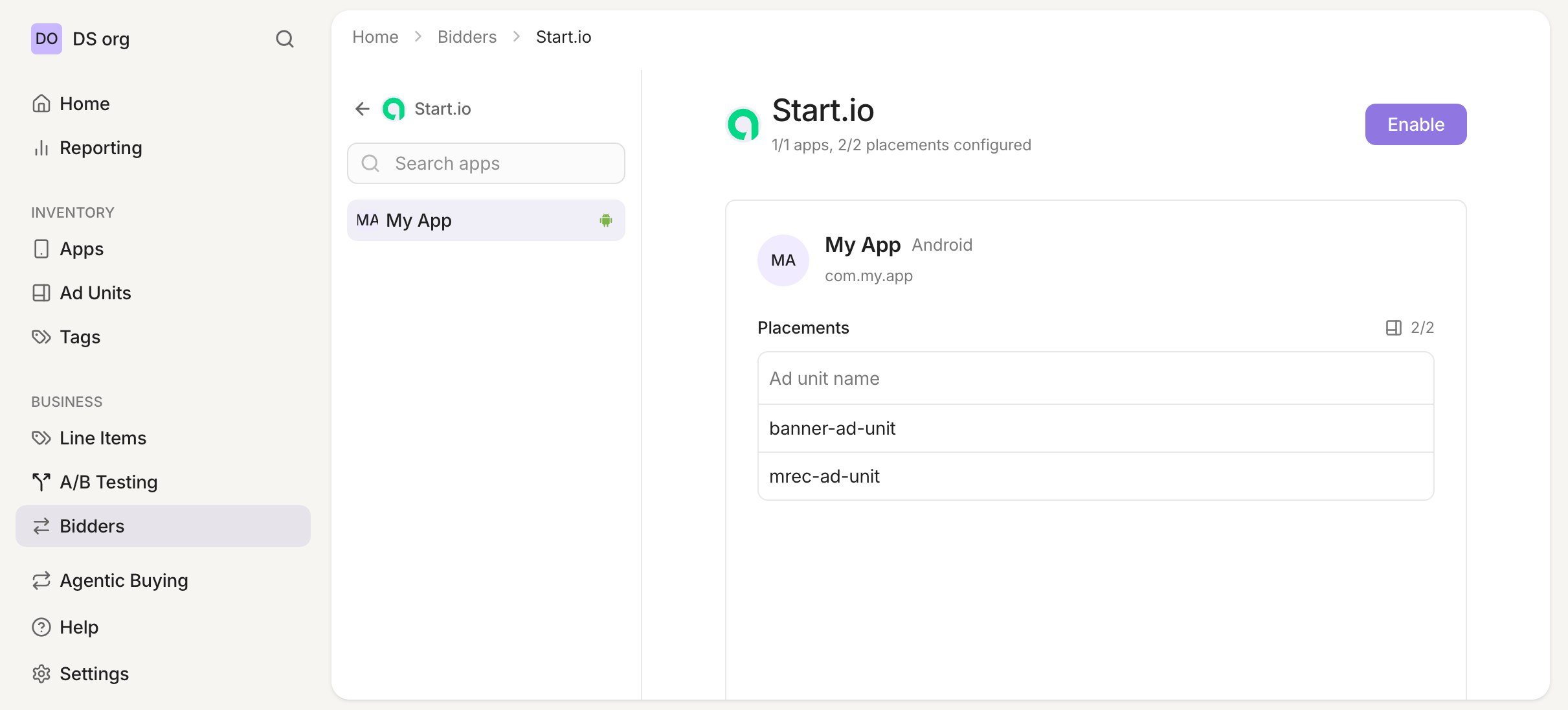 There is nothing to enter: Start.io has no account-level credentials, app mappings, or placement mappings in CloudX. If `Start.io` is disabled, CloudX will not request Start.io bids for your inventory.
## Step 3. Add Start.io line items
Go to `Line Items` and create line items for bidder `Start.io` on each CloudX ad unit where Start.io should compete.
There is nothing to enter: Start.io has no account-level credentials, app mappings, or placement mappings in CloudX. If `Start.io` is disabled, CloudX will not request Start.io bids for your inventory.
## Step 3. Add Start.io line items
Go to `Line Items` and create line items for bidder `Start.io` on each CloudX ad unit where Start.io should compete.
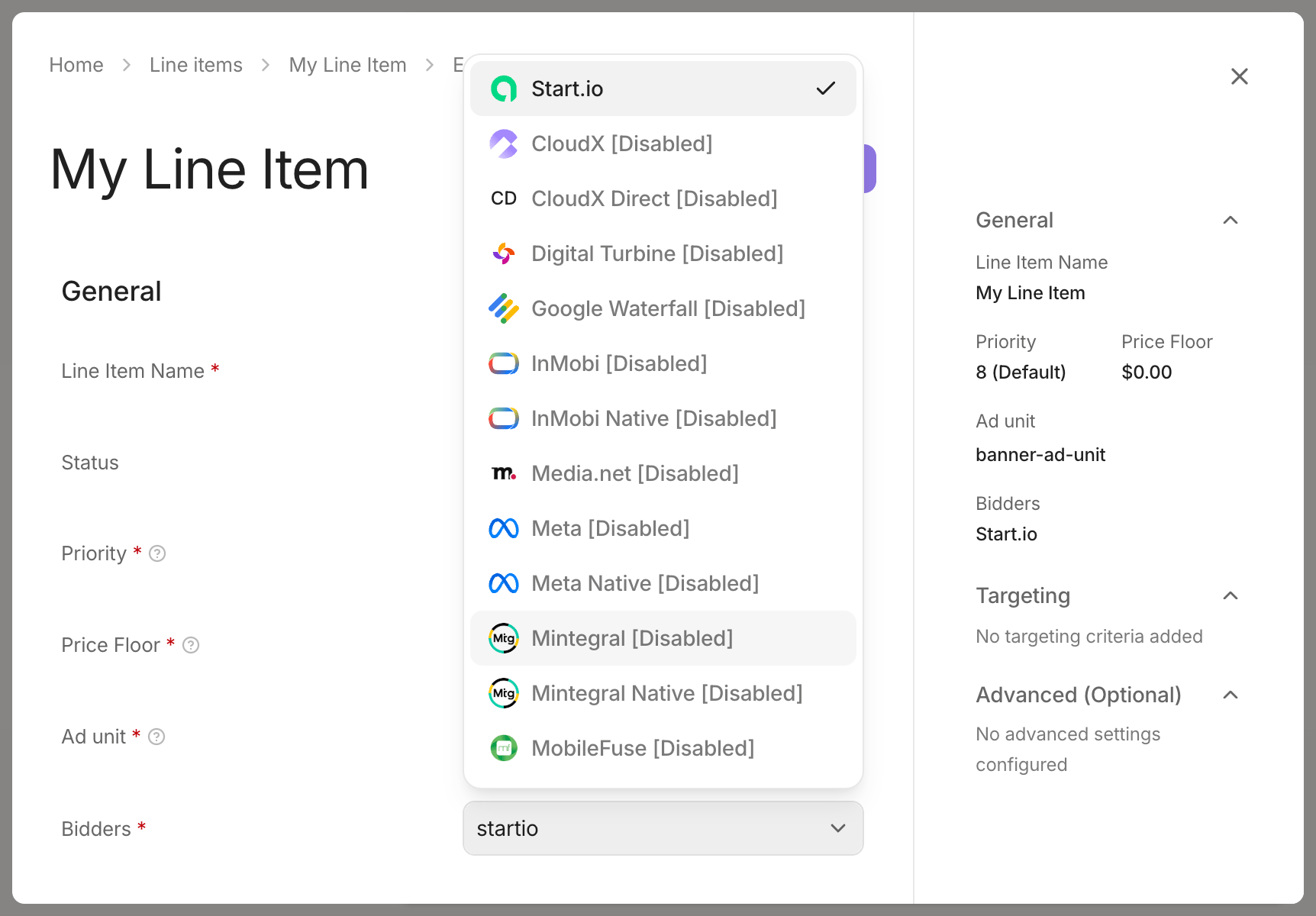 * Use bidder `Start.io`
* Target Banner and MREC ad units
* Repeat the setup for each ad unit where Start.io should bid
## Step 4. Test and validate
Start.io does not provide a formal RTB test mode. Use controlled live traffic after Start.io confirms your app-ads.txt setup.
1. Add your device as a CloudX test device so you can inspect CloudX behavior during validation.
2. Build and run the app with the CloudX `app_key` and the correct CloudX ad unit identifiers.
3. Request ads from each Banner and MREC ad unit where Start.io is enabled.
4. Confirm that Start.io participates or wins where expected and that returned ads render correctly.
5. Compare impressions and revenue with Start.io after traffic begins flowing.
CloudX test-device configuration helps you validate your integration, but it does not make Start.io return test ads. No fill during a small test can be normal and does not by itself indicate that the setup is broken.
## Troubleshooting
### Start.io is not listed
Start.io is currently beta in CloudX. Contact your CloudX account manager to request access if it is not visible in the `Bidders` section.
### Start.io is not bidding
Check the following first:
* `Start.io` is enabled in the `Bidders` section
* A `Start.io` line item exists for the ad unit
* The ad unit is Banner or MREC
* Start.io has provided and confirmed the current app-ads.txt lines for your publisher account
* The app store listing points to the developer domain hosting the updated app-ads.txt file
### Start.io bids but the ad does not render
Check the following:
* Your app is using the CloudX `app_key` and loading the intended CloudX ad unit
* Your app is on a current CloudX SDK version
* The ad unit is configured as Banner or MREC
Start.io creatives render through the CloudX SDK's built-in renderer. If a specific creative fails consistently, contact CloudX support with the app, ad unit, and approximate time of the failure.
### Demand is lower than expected
* Confirm with Start.io that your app-ads.txt file contains the latest publisher-specific entries.
* Allow time for Start.io and its buyers to re-crawl the updated file.
* Validate with controlled live volume because Start.io does not provide RTB test demand.
* Use bidder `Start.io`
* Target Banner and MREC ad units
* Repeat the setup for each ad unit where Start.io should bid
## Step 4. Test and validate
Start.io does not provide a formal RTB test mode. Use controlled live traffic after Start.io confirms your app-ads.txt setup.
1. Add your device as a CloudX test device so you can inspect CloudX behavior during validation.
2. Build and run the app with the CloudX `app_key` and the correct CloudX ad unit identifiers.
3. Request ads from each Banner and MREC ad unit where Start.io is enabled.
4. Confirm that Start.io participates or wins where expected and that returned ads render correctly.
5. Compare impressions and revenue with Start.io after traffic begins flowing.
CloudX test-device configuration helps you validate your integration, but it does not make Start.io return test ads. No fill during a small test can be normal and does not by itself indicate that the setup is broken.
## Troubleshooting
### Start.io is not listed
Start.io is currently beta in CloudX. Contact your CloudX account manager to request access if it is not visible in the `Bidders` section.
### Start.io is not bidding
Check the following first:
* `Start.io` is enabled in the `Bidders` section
* A `Start.io` line item exists for the ad unit
* The ad unit is Banner or MREC
* Start.io has provided and confirmed the current app-ads.txt lines for your publisher account
* The app store listing points to the developer domain hosting the updated app-ads.txt file
### Start.io bids but the ad does not render
Check the following:
* Your app is using the CloudX `app_key` and loading the intended CloudX ad unit
* Your app is on a current CloudX SDK version
* The ad unit is configured as Banner or MREC
Start.io creatives render through the CloudX SDK's built-in renderer. If a specific creative fails consistently, contact CloudX support with the app, ad unit, and approximate time of the failure.
### Demand is lower than expected
* Confirm with Start.io that your app-ads.txt file contains the latest publisher-specific entries.
* Allow time for Start.io and its buyers to re-crawl the updated file.
* Validate with controlled live volume because Start.io does not provide RTB test demand.