> ## Documentation Index
> Fetch the complete documentation index at: https://docs.cloudx.io/llms.txt
> Use this file to discover all available pages before exploring further.
# MobileFuse (BETA)
> Use this guide to configure MobileFuse bidding in CloudX.
MobileFuse is currently beta in CloudX. If it is not visible under `Operations -> Bidder Configuration`, contact your CloudX account manager for beta access.
Keep using the platform integration guides for SDK installation and ad loading:
* [Android integration guide](/en/android/integration)
* [iOS integration guide](/en/ios/integration)
For MobileFuse adapter requirements, see:
* [Android MobileFuse Adapter page](/en/android/adapters/mobilefuse/overview)
* [iOS MobileFuse Adapter page](/en/ios/adapters/mobilefuse)
## Overview
Use the following values:
* `MobileFuse Publisher ID` in `Operations -> Bidder Configuration`; this account-level value applies to all apps
* `MobileFuse Placement ID` on each eligible CloudX ad unit
* CloudX `app_key` and CloudX ad unit identifiers in app code
CloudX currently supports MobileFuse bidding for Banner, MREC, Interstitial, and Rewarded. MobileFuse also supports Native upstream, and Native bidding through CloudX is coming soon.
MobileFuse demand is currently available only in the United States and Canada.
CloudX collects the MobileFuse bid token through the MobileFuse adapter, so you do not need to fetch or pass the token in your app code.
## Step 1. Complete MobileFuse onboarding
Before configuring MobileFuse in CloudX, finalize your agreement with MobileFuse. Your MobileFuse account manager will provide:
* One Publisher ID for your publisher account
* Placement IDs for each app placement and ad format you want to monetize
* Access to MobileFuse reporting
Before launch, update your app-ads.txt file using MobileFuse's [current requirements](https://docs.mobilefuse.com/docs/app-adstxt). Publish all required mobile-app entries, replace `####` with your unique MobileFuse Partner ID, and set `OWNERDOMAIN` to your company domain. Always use the current list from MobileFuse rather than copying entries from this guide.
Official MobileFuse references:
* [SDK bidding](https://docs.mobilefuse.com/docs/sdk-bidding)
* [Testing SDK integrations](https://docs.mobilefuse.com/docs/testing-sdk-integrations)
## Step 2. Enable MobileFuse in CloudX and add the Publisher ID
Go to `Operations -> Bidder Configuration`, find `MobileFuse`, and enable it for your account.
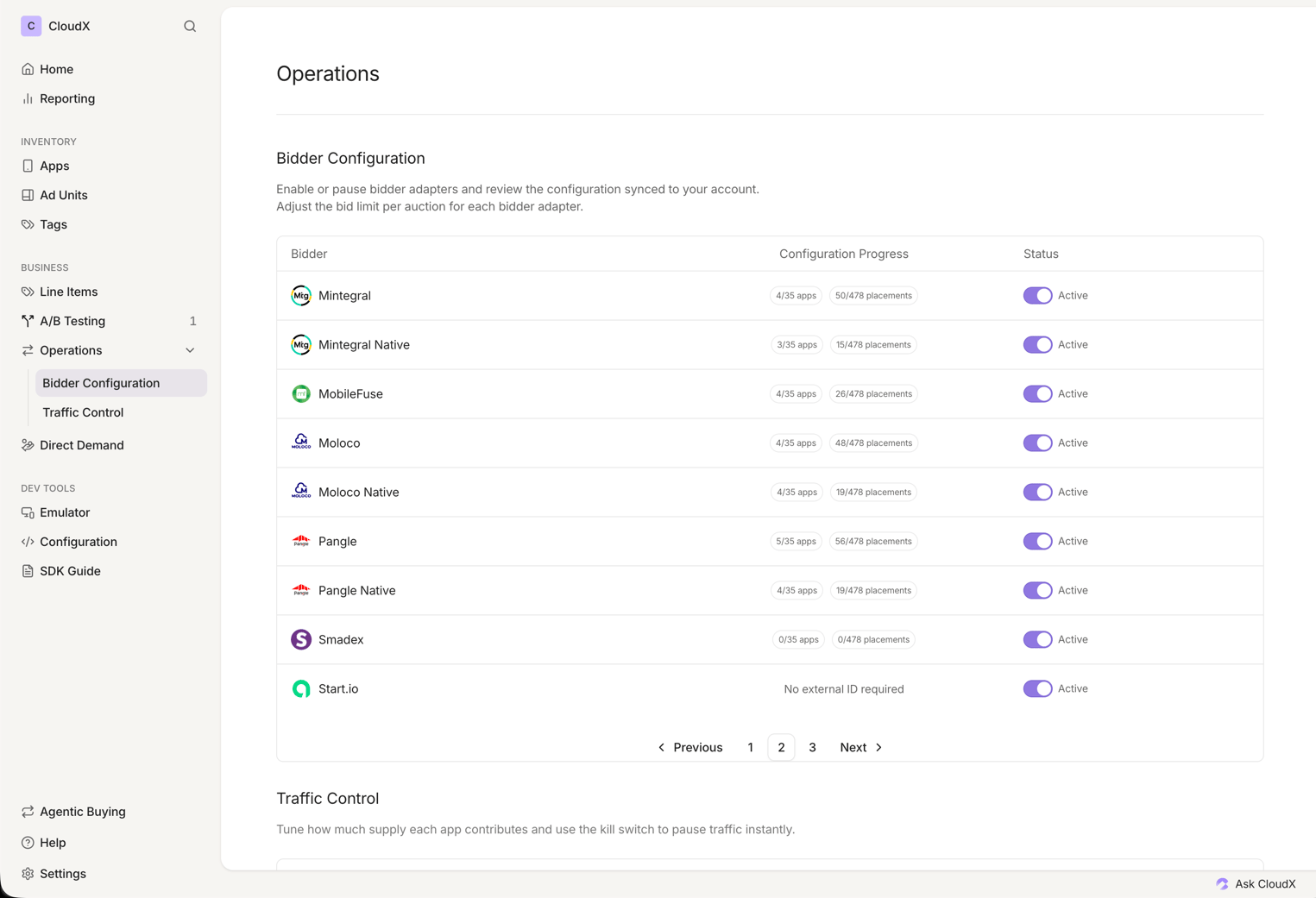 Open `MobileFuse` and enter the `MobileFuse Publisher ID` supplied during onboarding. This value is required and applies to every app in the CloudX account.
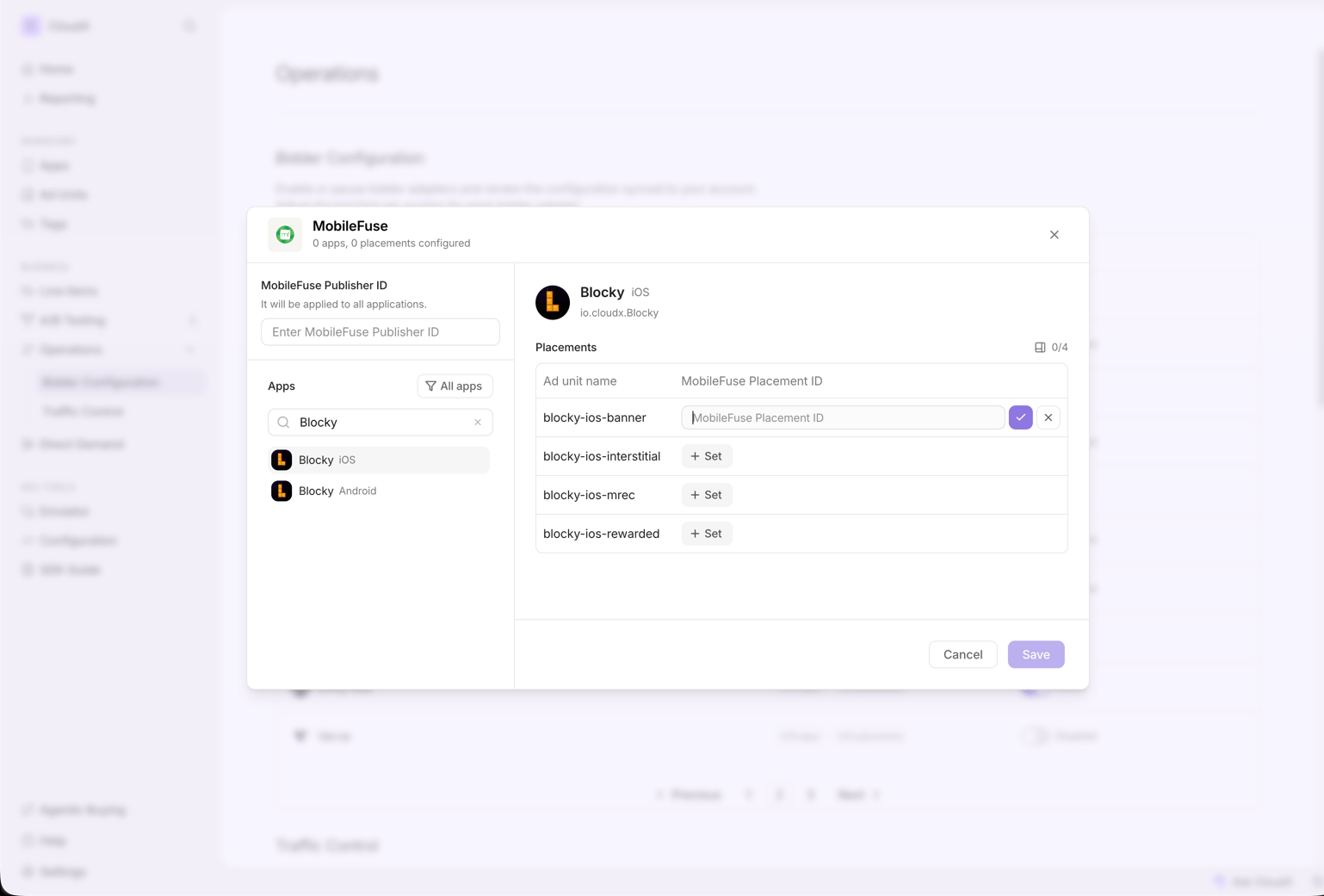 You can also configure Placement IDs from this panel. Search for an app, select it, and enter the MobileFuse Placement ID for each eligible ad unit. The next section covers the dedicated ad-unit configuration flow.
If MobileFuse is not listed, request beta access from your CloudX account manager.
## Step 3. Configure CloudX ad units
You can configure the same mapping directly from an ad unit. Go to `Inventory -> Apps -> [Your App] -> Ad units`, open the ad unit, and add its MobileFuse mapping.
You can also configure Placement IDs from this panel. Search for an app, select it, and enter the MobileFuse Placement ID for each eligible ad unit. The next section covers the dedicated ad-unit configuration flow.
If MobileFuse is not listed, request beta access from your CloudX account manager.
## Step 3. Configure CloudX ad units
You can configure the same mapping directly from an ad unit. Go to `Inventory -> Apps -> [Your App] -> Ad units`, open the ad unit, and add its MobileFuse mapping.
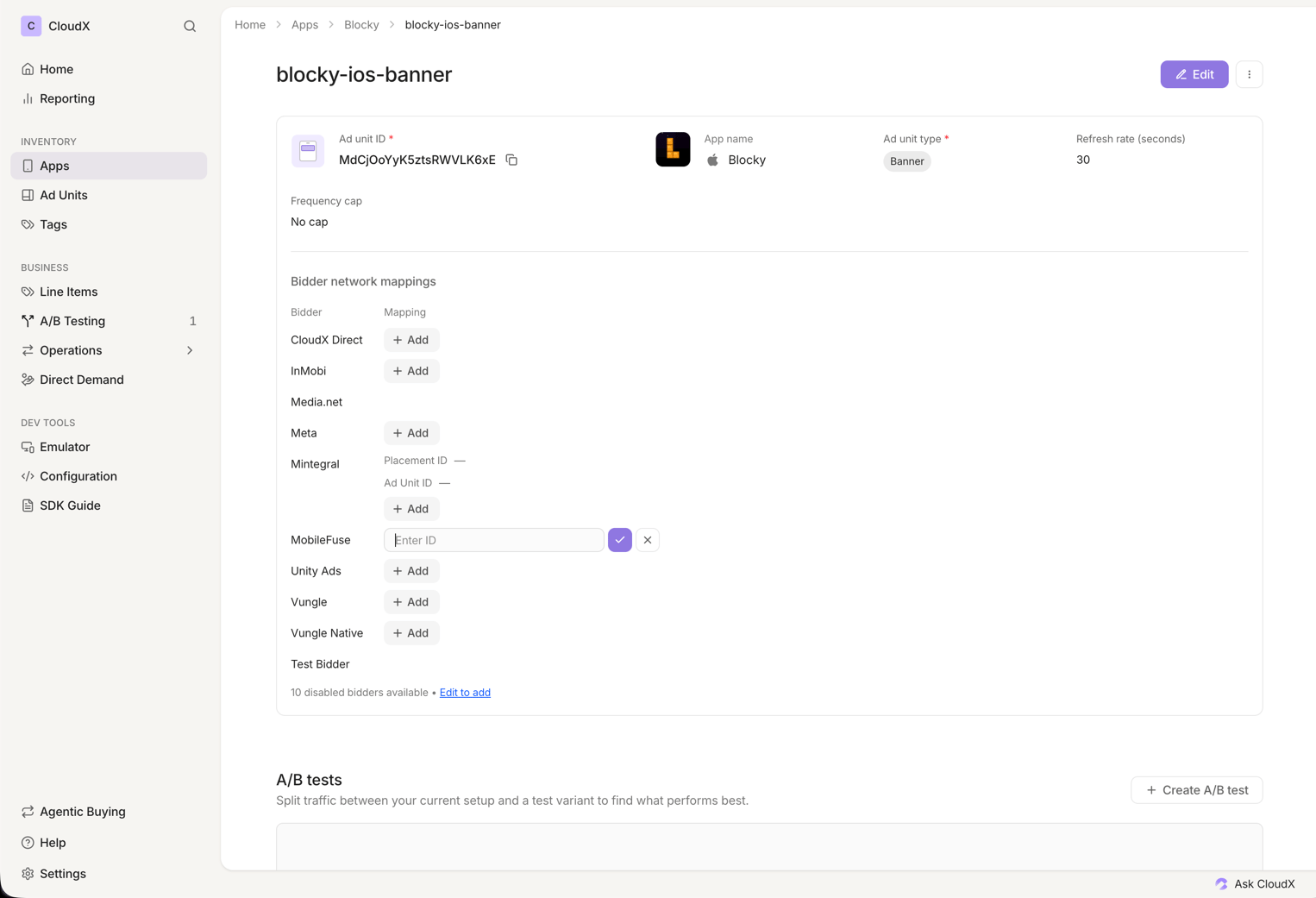 Whether you configure the mapping from Bidder Configuration or the ad-unit page, use the following value:
| CloudX field | Value to enter | Required |
| ------------------------- | --------------------------------------------------------------- | -------- |
| `MobileFuse Placement ID` | The numeric MobileFuse Placement ID for that ad unit and format | Yes |
* Match each Placement ID to the correct CloudX ad-unit format.
* Configure only the currently supported CloudX formats: Banner, MREC, Interstitial, and Rewarded.
* Use the Placement IDs supplied for the intended app placements.
## Step 4. Add MobileFuse line items
Create line items for bidder `MobileFuse` on each CloudX ad unit where MobileFuse should compete.
Whether you configure the mapping from Bidder Configuration or the ad-unit page, use the following value:
| CloudX field | Value to enter | Required |
| ------------------------- | --------------------------------------------------------------- | -------- |
| `MobileFuse Placement ID` | The numeric MobileFuse Placement ID for that ad unit and format | Yes |
* Match each Placement ID to the correct CloudX ad-unit format.
* Configure only the currently supported CloudX formats: Banner, MREC, Interstitial, and Rewarded.
* Use the Placement IDs supplied for the intended app placements.
## Step 4. Add MobileFuse line items
Create line items for bidder `MobileFuse` on each CloudX ad unit where MobileFuse should compete.
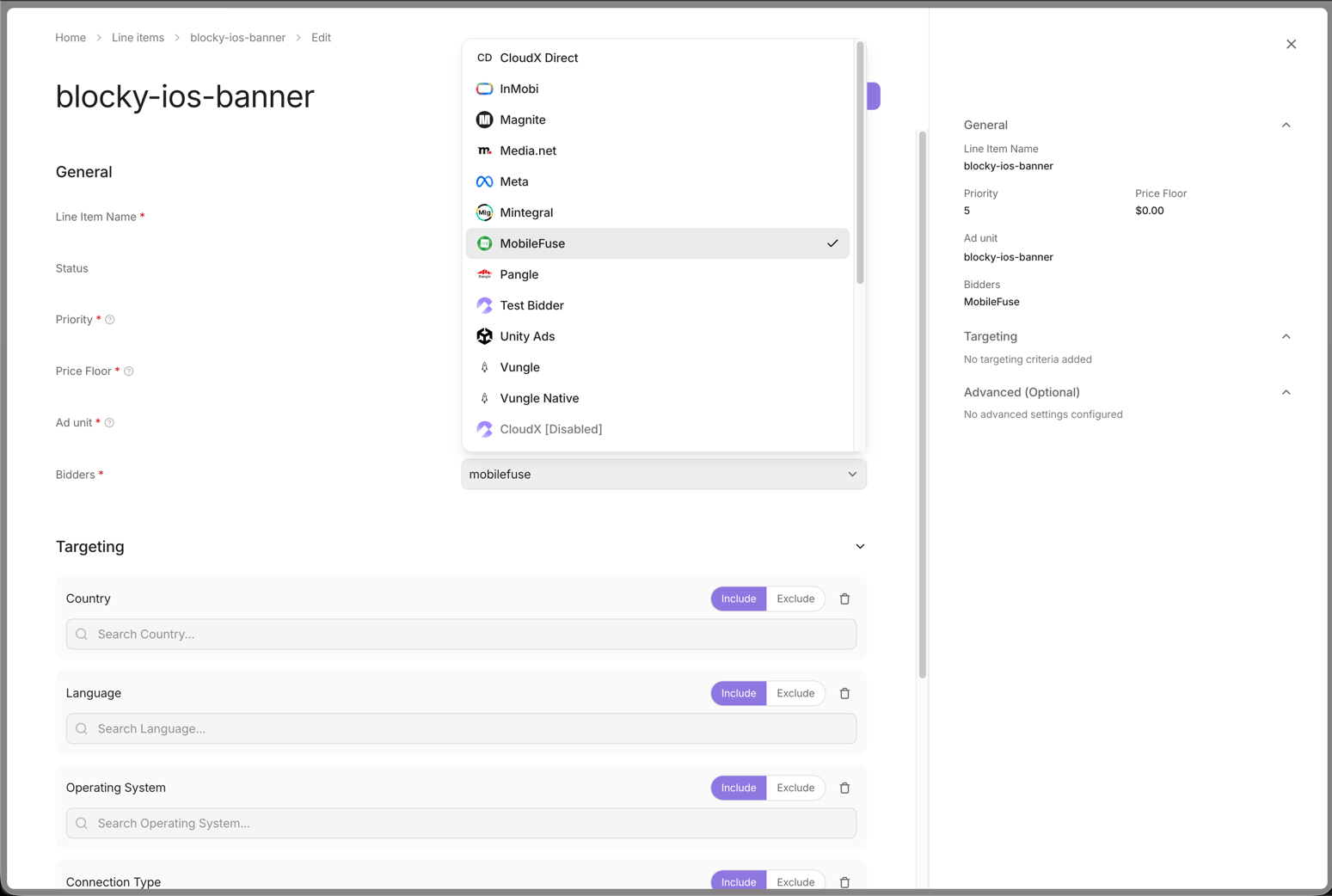 * Use bidder `MobileFuse`
* Match the line item to the correct ad format
* Repeat the setup for each ad unit where MobileFuse should bid
## Step 5. Finish app integration
Complete the adapter setup for your platform:
* [Android MobileFuse Adapter page](/en/android/adapters/mobilefuse/overview)
* [iOS MobileFuse Adapter page](/en/ios/adapters/mobilefuse)
In app code:
* Initialize CloudX with the CloudX `app_key`
* Load ads using CloudX ad unit identifiers
* Do not pass MobileFuse Publisher IDs or Placement IDs into app code
* Let the CloudX MobileFuse adapter collect the MobileFuse bid token
* For Interstitial and Rewarded ads, call `show()` only after the ad is ready
For iOS, CloudX automatically resolves the numeric App Store ID from the app's platform and bundle ID. Verify that the CloudX app is configured as iOS with the correct bundle ID, and contact your CloudX account manager if the numeric ID cannot be resolved.
## Step 6. Test and validate
1. Complete the MobileFuse adapter requirements for Android or iOS.
2. Enable test mode for your device in CloudX.
3. Build and run the app with the CloudX `app_key` and the correct CloudX ad unit identifiers.
4. Request an ad from every configured format: Banner, MREC, Interstitial, and Rewarded as applicable.
5. Confirm that MobileFuse participates and that a returned ad renders.
6. Re-test live demand from the United States or Canada.
No fill can be normal and does not by itself indicate that the configuration is broken.
## Troubleshooting
### MobileFuse is not listed
MobileFuse is currently beta in CloudX. Contact your CloudX account manager to request access if it is not visible under `Operations -> Bidder Configuration`.
### MobileFuse is not bidding
Check the following first:
* The test device or live user is in the United States or Canada
* `MobileFuse` is enabled under `Operations -> Bidder Configuration`
* The required account-level `MobileFuse Publisher ID` is present
* The ad unit has the correct numeric `MobileFuse Placement ID`
* The Placement ID matches the configured ad format
* A `MobileFuse` line item exists for the ad unit and format
* The MobileFuse adapter is installed so CloudX SDK can collect the MobileFuse bid token
### MobileFuse bids but the ad does not render
Check the following:
* Your app is using the CloudX `app_key`, not a MobileFuse identifier
* Your app is loading the intended CloudX ad unit
* The MobileFuse Placement ID belongs to the correct app placement and format
* The platform MobileFuse adapter is installed and its requirements are complete
* Interstitial and Rewarded ads are shown only after they are ready
## Mapping Reference
| CloudX field | Internal key | Scope |
| ------------------------- | -------------- | ------- |
| `MobileFuse Publisher ID` | `publisher_id` | Account |
| `MobileFuse Placement ID` | `placement_id` | Ad unit |
The numeric iOS App Store ID is automatically resolved from the CloudX app's platform and bundle ID. It is not a publisher-entered MobileFuse field.
* Use bidder `MobileFuse`
* Match the line item to the correct ad format
* Repeat the setup for each ad unit where MobileFuse should bid
## Step 5. Finish app integration
Complete the adapter setup for your platform:
* [Android MobileFuse Adapter page](/en/android/adapters/mobilefuse/overview)
* [iOS MobileFuse Adapter page](/en/ios/adapters/mobilefuse)
In app code:
* Initialize CloudX with the CloudX `app_key`
* Load ads using CloudX ad unit identifiers
* Do not pass MobileFuse Publisher IDs or Placement IDs into app code
* Let the CloudX MobileFuse adapter collect the MobileFuse bid token
* For Interstitial and Rewarded ads, call `show()` only after the ad is ready
For iOS, CloudX automatically resolves the numeric App Store ID from the app's platform and bundle ID. Verify that the CloudX app is configured as iOS with the correct bundle ID, and contact your CloudX account manager if the numeric ID cannot be resolved.
## Step 6. Test and validate
1. Complete the MobileFuse adapter requirements for Android or iOS.
2. Enable test mode for your device in CloudX.
3. Build and run the app with the CloudX `app_key` and the correct CloudX ad unit identifiers.
4. Request an ad from every configured format: Banner, MREC, Interstitial, and Rewarded as applicable.
5. Confirm that MobileFuse participates and that a returned ad renders.
6. Re-test live demand from the United States or Canada.
No fill can be normal and does not by itself indicate that the configuration is broken.
## Troubleshooting
### MobileFuse is not listed
MobileFuse is currently beta in CloudX. Contact your CloudX account manager to request access if it is not visible under `Operations -> Bidder Configuration`.
### MobileFuse is not bidding
Check the following first:
* The test device or live user is in the United States or Canada
* `MobileFuse` is enabled under `Operations -> Bidder Configuration`
* The required account-level `MobileFuse Publisher ID` is present
* The ad unit has the correct numeric `MobileFuse Placement ID`
* The Placement ID matches the configured ad format
* A `MobileFuse` line item exists for the ad unit and format
* The MobileFuse adapter is installed so CloudX SDK can collect the MobileFuse bid token
### MobileFuse bids but the ad does not render
Check the following:
* Your app is using the CloudX `app_key`, not a MobileFuse identifier
* Your app is loading the intended CloudX ad unit
* The MobileFuse Placement ID belongs to the correct app placement and format
* The platform MobileFuse adapter is installed and its requirements are complete
* Interstitial and Rewarded ads are shown only after they are ready
## Mapping Reference
| CloudX field | Internal key | Scope |
| ------------------------- | -------------- | ------- |
| `MobileFuse Publisher ID` | `publisher_id` | Account |
| `MobileFuse Placement ID` | `placement_id` | Ad unit |
The numeric iOS App Store ID is automatically resolved from the CloudX app's platform and bundle ID. It is not a publisher-entered MobileFuse field.