> ## Documentation Index
> Fetch the complete documentation index at: https://docs.cloudx.io/llms.txt
> Use this file to discover all available pages before exploring further.
# Magnite
> Use this guide to configure Magnite bidding in CloudX.
Keep using the platform integration guides for SDK installation and ad loading:
* [Android integration guide](/en/android/integration)
* [iOS integration guide](/en/ios/integration)
For iOS-specific Magnite adapter requirements, see the [Magnite Adapter page](/en/ios/adapters/magnite/overview).
## Overview
Use the following values:
* `Account ID` in the CloudX app-level Magnite mapping
* `Site ID` in the CloudX app-level Magnite mapping
* `Zone ID` in the CloudX ad-unit-level Magnite mapping
* CloudX `app_key` and CloudX ad unit identifiers in app code
CloudX collects Magnite bidder tokens internally, so you do not need to fetch Magnite bidder tokens in your app code.
## Step 1. Complete Magnite-side setup
1. Sign in to your Magnite account.
2. Identify the account you want to use for bidding.
3. Copy the Magnite `Account ID`.
4. Copy the Magnite `Site ID` for the app or property you want to monetize.
5. Create or identify a `Zone ID` for each ad format you want to use.
6. Complete any required Magnite review, app registration, and payout setup before expecting live demand.
## Step 2. Enable Magnite in CloudX
Go to `Operations -> Bidder Configuration` and make sure `Magnite` is enabled for your account.
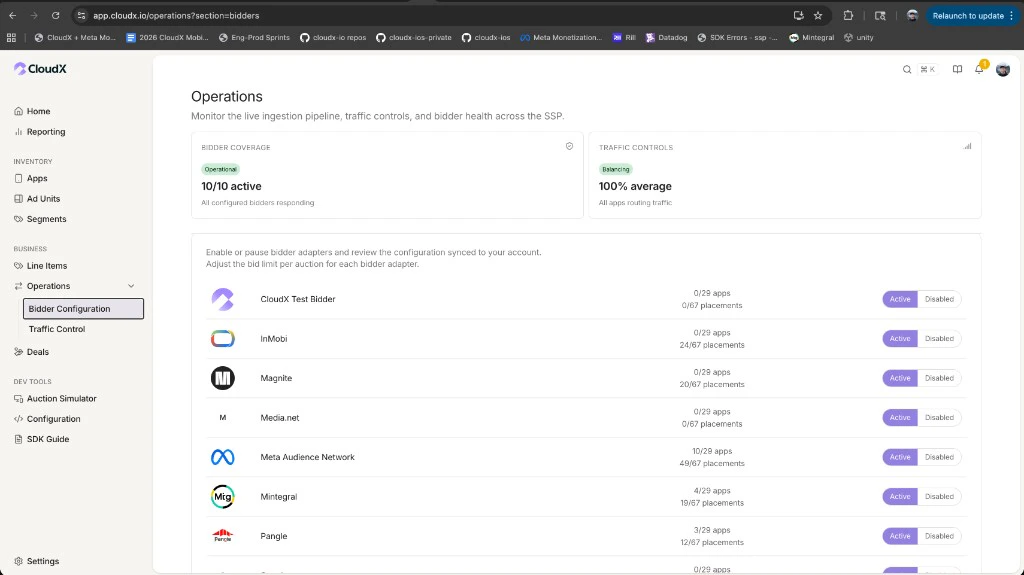 If `Magnite` is disabled, CloudX will not request bids from Magnite even if your mappings are correct.
## Step 3. Configure your CloudX app
Go to `Inventory -> Apps` and create or open the app that matches your mobile application.
Add the following values to the Magnite mapping on the app:
| CloudX field | Value to enter | Required |
| ------------ | --------------------------------- | -------- |
| `Account ID` | Your Magnite account ID | Yes |
| `Site ID` | Your Magnite site ID for this app | Yes |
Also copy the CloudX `app_key` from the app details page. Use the CloudX `app_key` in Android or iOS code. Do not use Magnite account or site IDs as the CloudX SDK app key.
## Step 4. Configure CloudX ad units
Go to `Inventory -> Apps -> [Your App] -> Ad units` and add the Magnite mapping below for each eligible ad unit.
| CloudX field | Value to enter | Required |
| ------------ | ----------------------------------------------- | -------- |
| `Zone ID` | The Magnite zone ID for that ad unit and format | Yes |
If `Magnite` is disabled, CloudX will not request bids from Magnite even if your mappings are correct.
## Step 3. Configure your CloudX app
Go to `Inventory -> Apps` and create or open the app that matches your mobile application.
Add the following values to the Magnite mapping on the app:
| CloudX field | Value to enter | Required |
| ------------ | --------------------------------- | -------- |
| `Account ID` | Your Magnite account ID | Yes |
| `Site ID` | Your Magnite site ID for this app | Yes |
Also copy the CloudX `app_key` from the app details page. Use the CloudX `app_key` in Android or iOS code. Do not use Magnite account or site IDs as the CloudX SDK app key.
## Step 4. Configure CloudX ad units
Go to `Inventory -> Apps -> [Your App] -> Ad units` and add the Magnite mapping below for each eligible ad unit.
| CloudX field | Value to enter | Required |
| ------------ | ----------------------------------------------- | -------- |
| `Zone ID` | The Magnite zone ID for that ad unit and format | Yes |
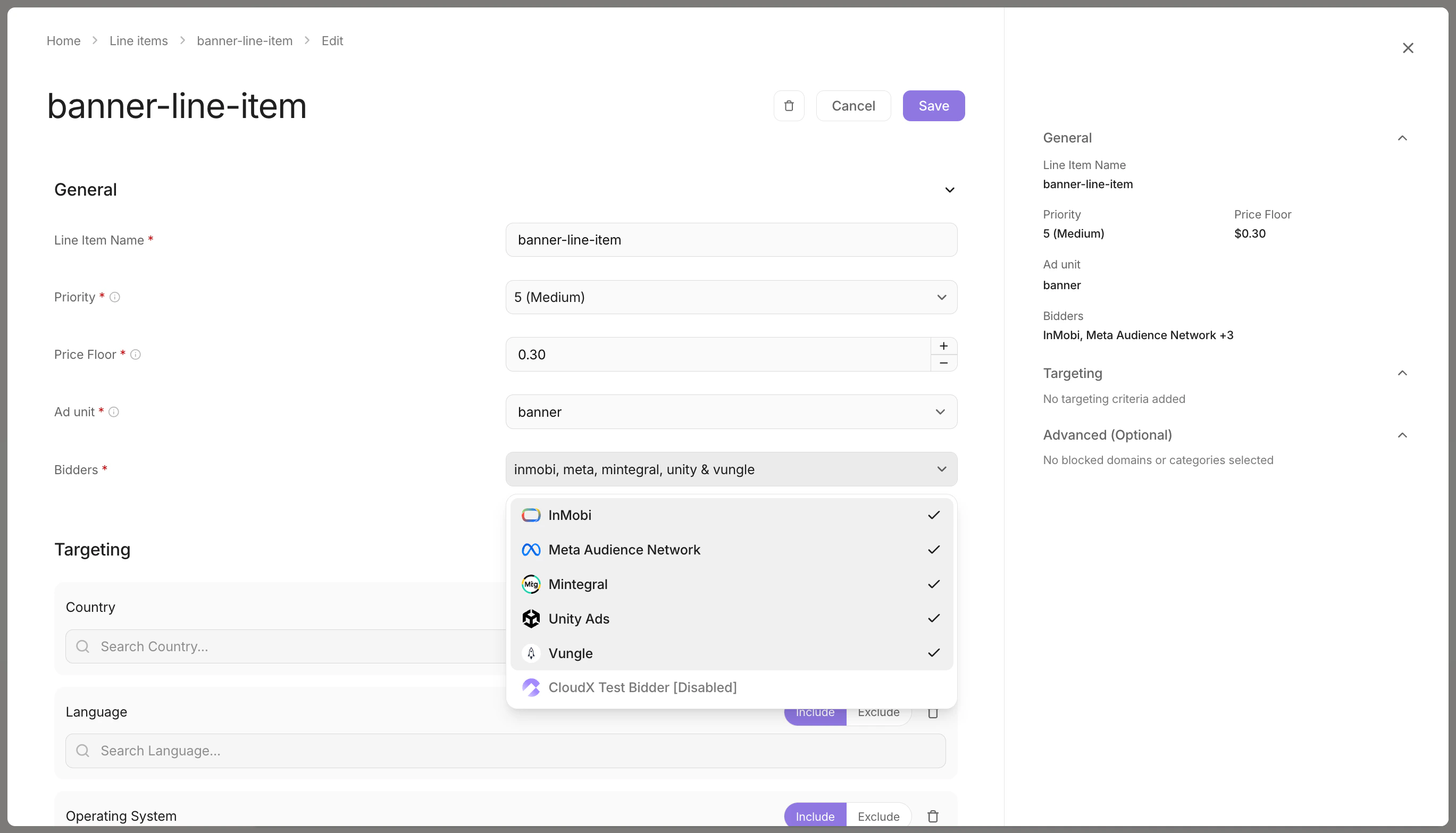 * Match the zone to the correct CloudX ad-unit format.
* Use a separate zone for each format you want Magnite to bid on.
* For Banner and MREC, make sure the zone matches the intended size.
## Step 5. Add Magnite line items
Create line items for bidder `Magnite` on each CloudX ad unit where Magnite should compete.
* Match the zone to the correct CloudX ad-unit format.
* Use a separate zone for each format you want Magnite to bid on.
* For Banner and MREC, make sure the zone matches the intended size.
## Step 5. Add Magnite line items
Create line items for bidder `Magnite` on each CloudX ad unit where Magnite should compete.
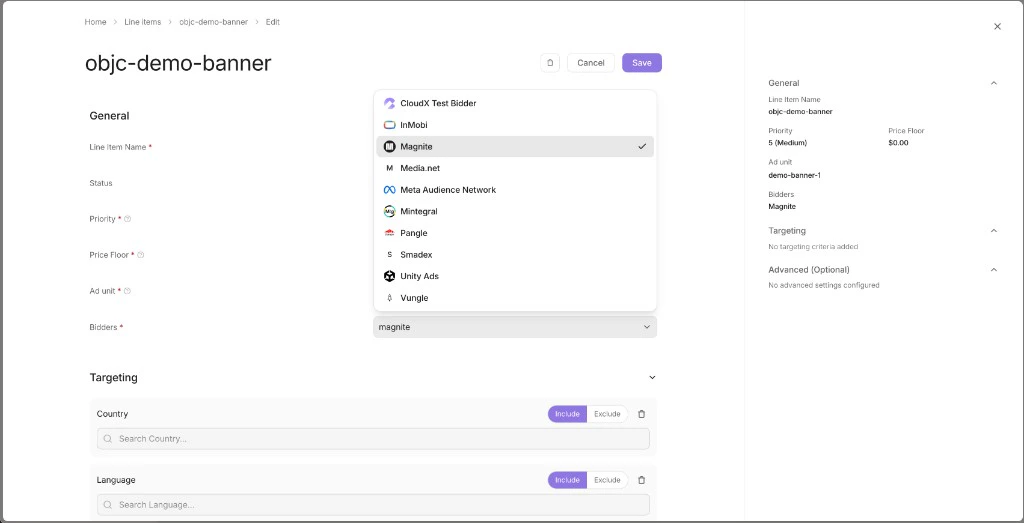 * Use bidder `Magnite`
* Match the line item to the correct ad format
* Repeat the setup for each ad unit where Magnite should bid
## Step 6. Finish app integration
Use the CloudX platform guides and the iOS Magnite adapter page:
* [Android integration guide](/en/android/integration)
* [iOS integration guide](/en/ios/integration)
* [Magnite Adapter page](/en/ios/adapters/magnite/overview)
In app code:
* Initialize CloudX with the CloudX `app_key`
* Load ads using CloudX ad unit identifiers
* Do not pass Magnite Account IDs, Site IDs, or Zone IDs into app code
* For Interstitial and Rewarded ads, call `show()` only after the ad is ready
## Step 7. Test and validate
1. Enable test mode for your device in CloudX.
2. Build and run the app with the CloudX `app_key` and the correct CloudX ad unit identifiers.
3. Request an ad from each mapped ad unit.
4. Confirm that the ad loads and that Magnite participates or wins where expected.
## Troubleshooting
### Magnite is not bidding
Check the following first:
* `Magnite` is enabled in `Operations -> Bidder Configuration`
* The app has a valid `Account ID`
* The app has a valid `Site ID`
* The ad unit has a valid `Zone ID`
* A `Magnite` line item exists for the ad unit
### Magnite bids but the ad does not render
Check the following:
* Your app is using the CloudX `app_key`, not a Magnite identifier
* Your app is loading the intended CloudX ad unit
* The zone belongs to the correct Magnite format
* On iOS, the requirements from the [Magnite Adapter page](/en/ios/adapters/magnite/overview) are complete
### The mapping looks correct but loads still fail
The mobile adapters expect `Account ID`, `Site ID`, and `Zone ID` to be present in the correct places. Re-check the app-level and ad-unit-level Magnite mappings in CloudX and make sure the values were copied exactly.
## Mapping Reference
| CloudX field | Internal key | Scope |
| ------------ | ------------ | ------- |
| `Account ID` | `account_id` | App |
| `Site ID` | `site_id` | App |
| `Zone ID` | `zone_id` | Ad unit |
* Use bidder `Magnite`
* Match the line item to the correct ad format
* Repeat the setup for each ad unit where Magnite should bid
## Step 6. Finish app integration
Use the CloudX platform guides and the iOS Magnite adapter page:
* [Android integration guide](/en/android/integration)
* [iOS integration guide](/en/ios/integration)
* [Magnite Adapter page](/en/ios/adapters/magnite/overview)
In app code:
* Initialize CloudX with the CloudX `app_key`
* Load ads using CloudX ad unit identifiers
* Do not pass Magnite Account IDs, Site IDs, or Zone IDs into app code
* For Interstitial and Rewarded ads, call `show()` only after the ad is ready
## Step 7. Test and validate
1. Enable test mode for your device in CloudX.
2. Build and run the app with the CloudX `app_key` and the correct CloudX ad unit identifiers.
3. Request an ad from each mapped ad unit.
4. Confirm that the ad loads and that Magnite participates or wins where expected.
## Troubleshooting
### Magnite is not bidding
Check the following first:
* `Magnite` is enabled in `Operations -> Bidder Configuration`
* The app has a valid `Account ID`
* The app has a valid `Site ID`
* The ad unit has a valid `Zone ID`
* A `Magnite` line item exists for the ad unit
### Magnite bids but the ad does not render
Check the following:
* Your app is using the CloudX `app_key`, not a Magnite identifier
* Your app is loading the intended CloudX ad unit
* The zone belongs to the correct Magnite format
* On iOS, the requirements from the [Magnite Adapter page](/en/ios/adapters/magnite/overview) are complete
### The mapping looks correct but loads still fail
The mobile adapters expect `Account ID`, `Site ID`, and `Zone ID` to be present in the correct places. Re-check the app-level and ad-unit-level Magnite mappings in CloudX and make sure the values were copied exactly.
## Mapping Reference
| CloudX field | Internal key | Scope |
| ------------ | ------------ | ------- |
| `Account ID` | `account_id` | App |
| `Site ID` | `site_id` | App |
| `Zone ID` | `zone_id` | Ad unit |