> ## Documentation Index
> Fetch the complete documentation index at: https://docs.cloudx.io/llms.txt
> Use this file to discover all available pages before exploring further.
# InMobi
> Use this guide to configure InMobi bidding in CloudX.
Keep using the platform integration guides for SDK installation and ad loading:
* [Android integration guide](/en/android/integration)
* [iOS integration guide](/en/ios/integration)
For iOS-specific InMobi adapter requirements, see the [InMobi Adapter page](/en/ios/adapters/inmobi/overview).
## Overview
Use the following values:
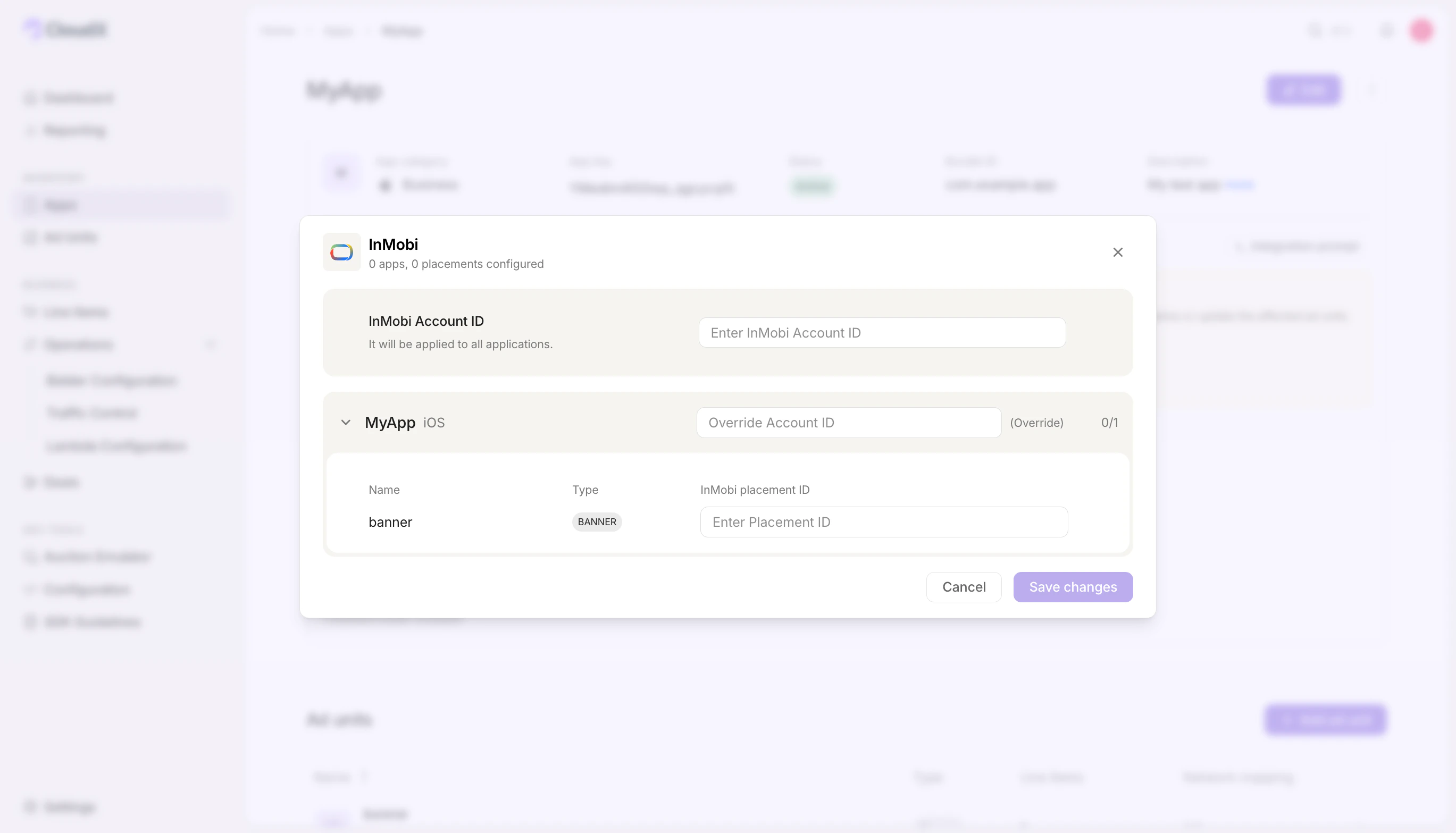
* `InMobi Account ID` in `Operations -> Bidder Configuration`
* InMobi placement IDs on CloudX ad units
* CloudX `app_key` and CloudX ad unit identifiers in app code
InMobi is different from Meta, Mintegral, and Vungle because the main InMobi account credential is configured at the bidder or account level in CloudX, not as a per-app SDK key.
CloudX collects InMobi bidder tokens internally, so you do not need to fetch InMobi bidder tokens in your app code.
## Step 1. Complete InMobi-side setup
1. Sign in to your InMobi publisher account.
2. Copy your InMobi Account ID.
3. Create placements for each format you want to use.
4. Copy each placement ID.
5. Complete InMobi review and payout setup before expecting live demand.
## Step 2. Enable InMobi in CloudX and add the account ID
Go to `Operations -> Bidder Configuration` and make sure `InMobi` is enabled for your account.
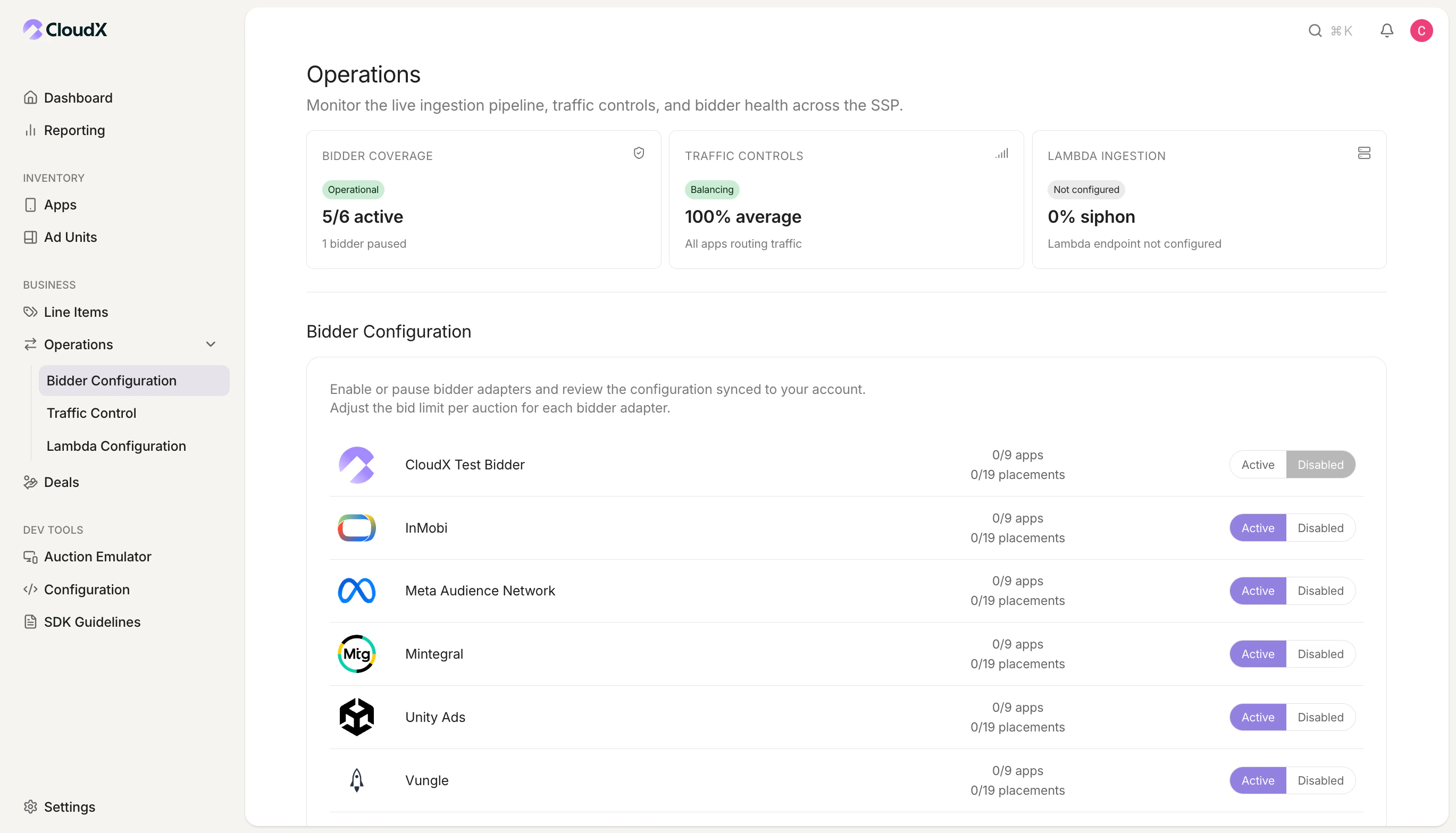 Enter your `InMobi Account ID` there. CloudX uses this account-level value when initializing the InMobi SDK.
 ## Step 3. Configure CloudX ad units
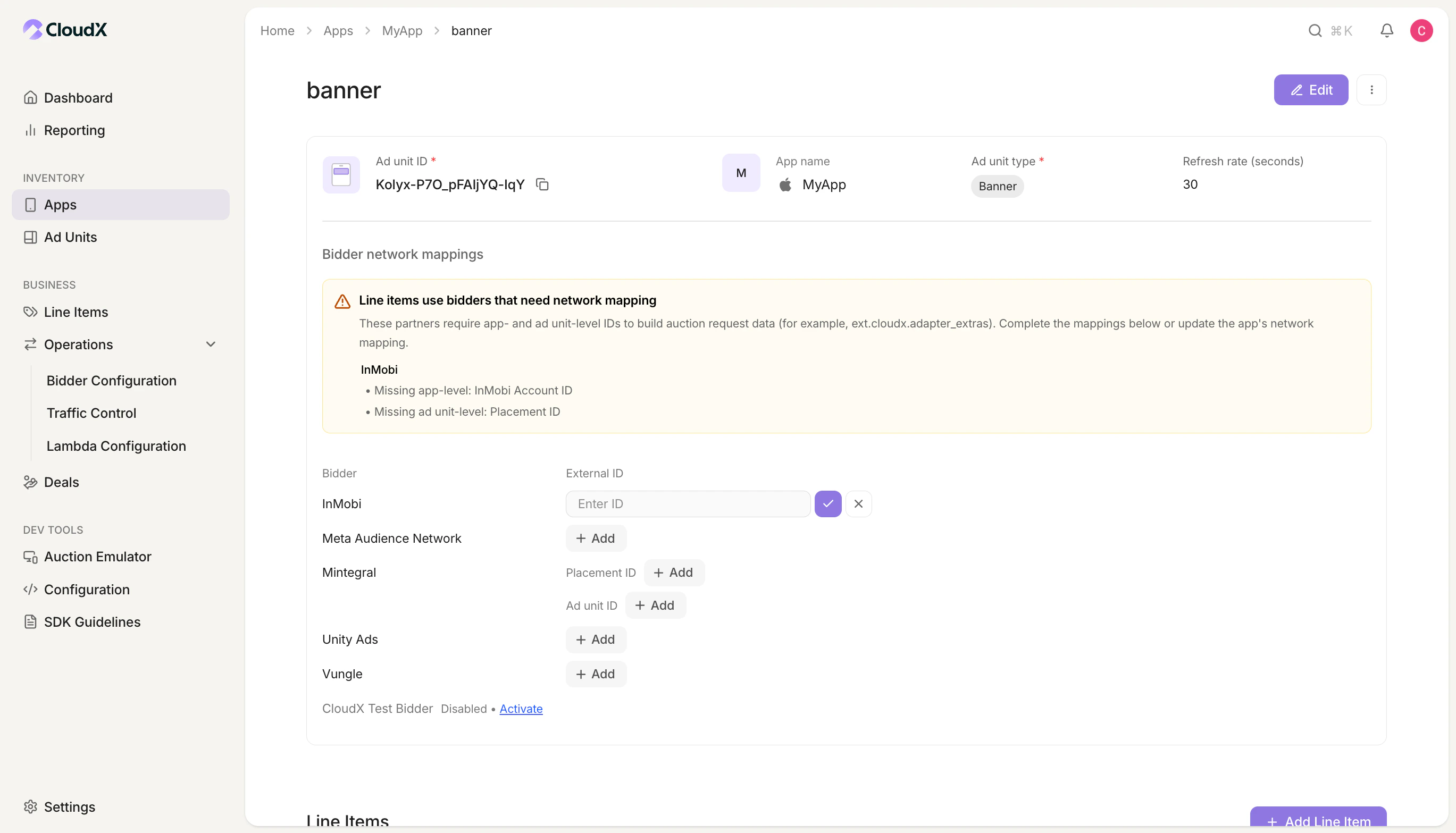
Go to `Inventory -> Ad units` and add the InMobi placement mapping for each eligible ad unit.
## Step 3. Configure CloudX ad units
Go to `Inventory -> Ad units` and add the InMobi placement mapping for each eligible ad unit.
 | CloudX field | Value to enter | Required |
| --------------------- | ----------------------------------------------------------- | -------- |
| `InMobi placement ID` | The numeric InMobi placement ID for that ad unit and format | Yes |
* Use the numeric placement ID from InMobi.
* Match the placement to the correct CloudX ad-unit format.
* No separate app-level InMobi mapping is required for the standard CloudX setup.
## Step 4. Add InMobi line items
Create line items for bidder `InMobi` on each CloudX ad unit where InMobi should compete.
| CloudX field | Value to enter | Required |
| --------------------- | ----------------------------------------------------------- | -------- |
| `InMobi placement ID` | The numeric InMobi placement ID for that ad unit and format | Yes |
* Use the numeric placement ID from InMobi.
* Match the placement to the correct CloudX ad-unit format.
* No separate app-level InMobi mapping is required for the standard CloudX setup.
## Step 4. Add InMobi line items
Create line items for bidder `InMobi` on each CloudX ad unit where InMobi should compete.
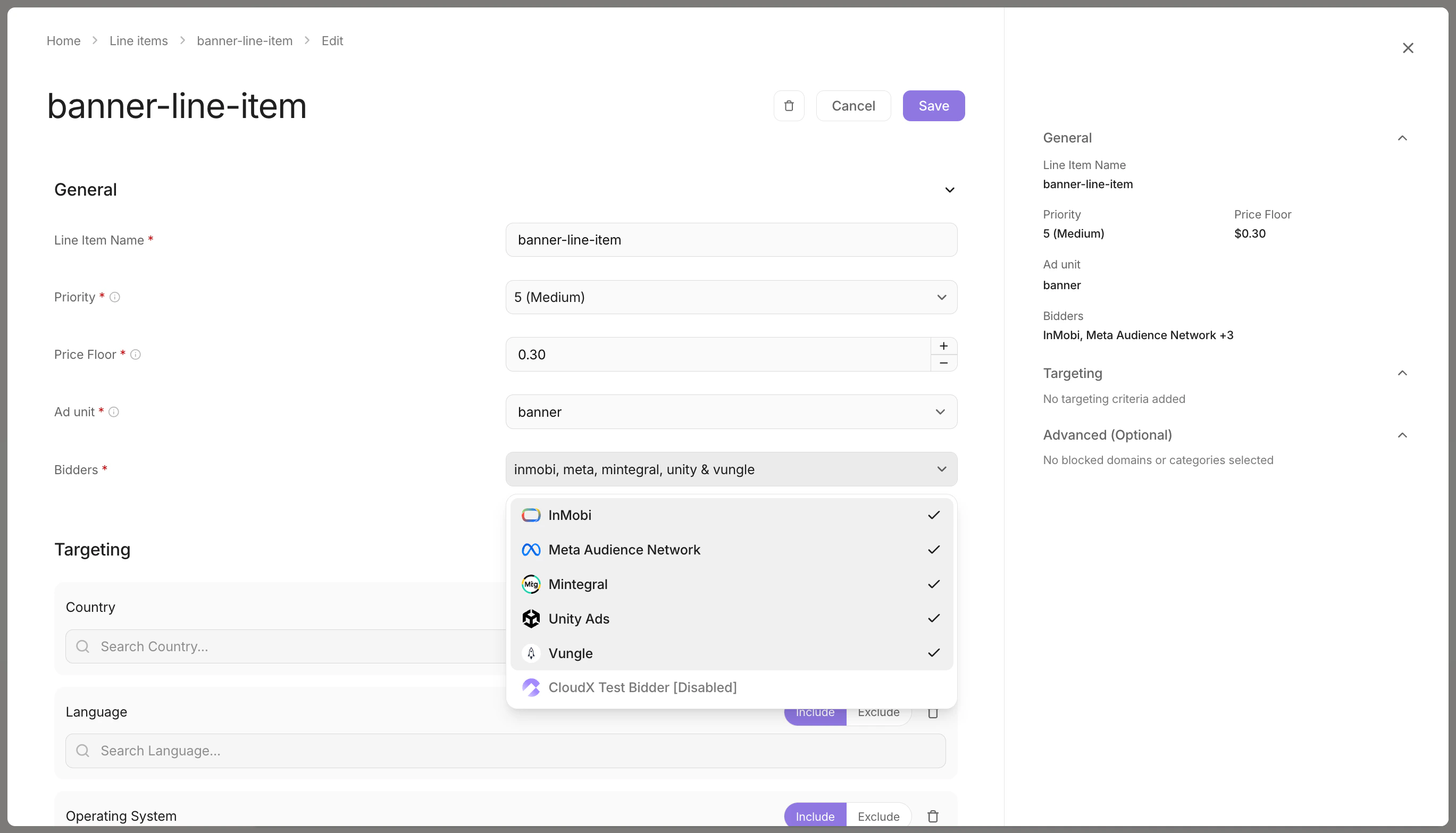 * Use bidder `InMobi`
* Match the line item to the correct ad format
* Repeat the setup for each ad unit where InMobi should bid
## Step 5. Finish app integration
Use the CloudX platform guides and the iOS InMobi adapter page:
* [Android integration guide](/en/android/integration)
* [iOS integration guide](/en/ios/integration)
* [InMobi Adapter page](/en/ios/adapters/inmobi/overview)
In app code:
* Initialize CloudX with the CloudX `app_key`
* Load ads using CloudX ad unit identifiers
* Do not pass InMobi Account IDs or placement IDs into app code
* For Interstitial and Rewarded ads, call `show()` only after the ad is ready
## Step 6. Test and validate
1. Enable test mode for your device in CloudX.
2. Build and run the app with the CloudX `app_key` and the correct CloudX ad unit identifiers.
3. Request an ad from each mapped ad unit.
4. Confirm that the ad loads and that InMobi participates or wins where expected.
## Troubleshooting
### InMobi is not bidding
Check the following first:
* `InMobi` is enabled in `Operations -> Bidder Configuration`
* `InMobi Account ID` is configured in bidder settings
* The ad unit has a valid numeric InMobi placement ID
* An `InMobi` line item exists for the ad unit
### InMobi bids but the ad does not render
Check the following:
* Your app is using the CloudX `app_key`, not an InMobi account credential
* Your app is loading the intended CloudX ad unit
* The placement ID is numeric and belongs to the correct InMobi format
* On iOS, the requirements from the [InMobi Adapter page](/en/ios/adapters/inmobi/overview) are complete
### The placement looks correct but loads still fail
The mobile adapters expect a valid numeric `placement_id`. Re-check the ad-unit-level placement mapping in CloudX and make sure the value was copied without formatting changes.
## Mapping Reference
| CloudX field | Internal key | Scope |
| --------------------- | -------------- | -------------- |
| `InMobi Account ID` | `account_id` | Bidder/account |
| `InMobi placement ID` | `placement_id` | Ad unit |
* Use bidder `InMobi`
* Match the line item to the correct ad format
* Repeat the setup for each ad unit where InMobi should bid
## Step 5. Finish app integration
Use the CloudX platform guides and the iOS InMobi adapter page:
* [Android integration guide](/en/android/integration)
* [iOS integration guide](/en/ios/integration)
* [InMobi Adapter page](/en/ios/adapters/inmobi/overview)
In app code:
* Initialize CloudX with the CloudX `app_key`
* Load ads using CloudX ad unit identifiers
* Do not pass InMobi Account IDs or placement IDs into app code
* For Interstitial and Rewarded ads, call `show()` only after the ad is ready
## Step 6. Test and validate
1. Enable test mode for your device in CloudX.
2. Build and run the app with the CloudX `app_key` and the correct CloudX ad unit identifiers.
3. Request an ad from each mapped ad unit.
4. Confirm that the ad loads and that InMobi participates or wins where expected.
## Troubleshooting
### InMobi is not bidding
Check the following first:
* `InMobi` is enabled in `Operations -> Bidder Configuration`
* `InMobi Account ID` is configured in bidder settings
* The ad unit has a valid numeric InMobi placement ID
* An `InMobi` line item exists for the ad unit
### InMobi bids but the ad does not render
Check the following:
* Your app is using the CloudX `app_key`, not an InMobi account credential
* Your app is loading the intended CloudX ad unit
* The placement ID is numeric and belongs to the correct InMobi format
* On iOS, the requirements from the [InMobi Adapter page](/en/ios/adapters/inmobi/overview) are complete
### The placement looks correct but loads still fail
The mobile adapters expect a valid numeric `placement_id`. Re-check the ad-unit-level placement mapping in CloudX and make sure the value was copied without formatting changes.
## Mapping Reference
| CloudX field | Internal key | Scope |
| --------------------- | -------------- | -------------- |
| `InMobi Account ID` | `account_id` | Bidder/account |
| `InMobi placement ID` | `placement_id` | Ad unit |