> ## Documentation Index
> Fetch the complete documentation index at: https://docs.cloudx.io/llms.txt
> Use this file to discover all available pages before exploring further.
# Testing
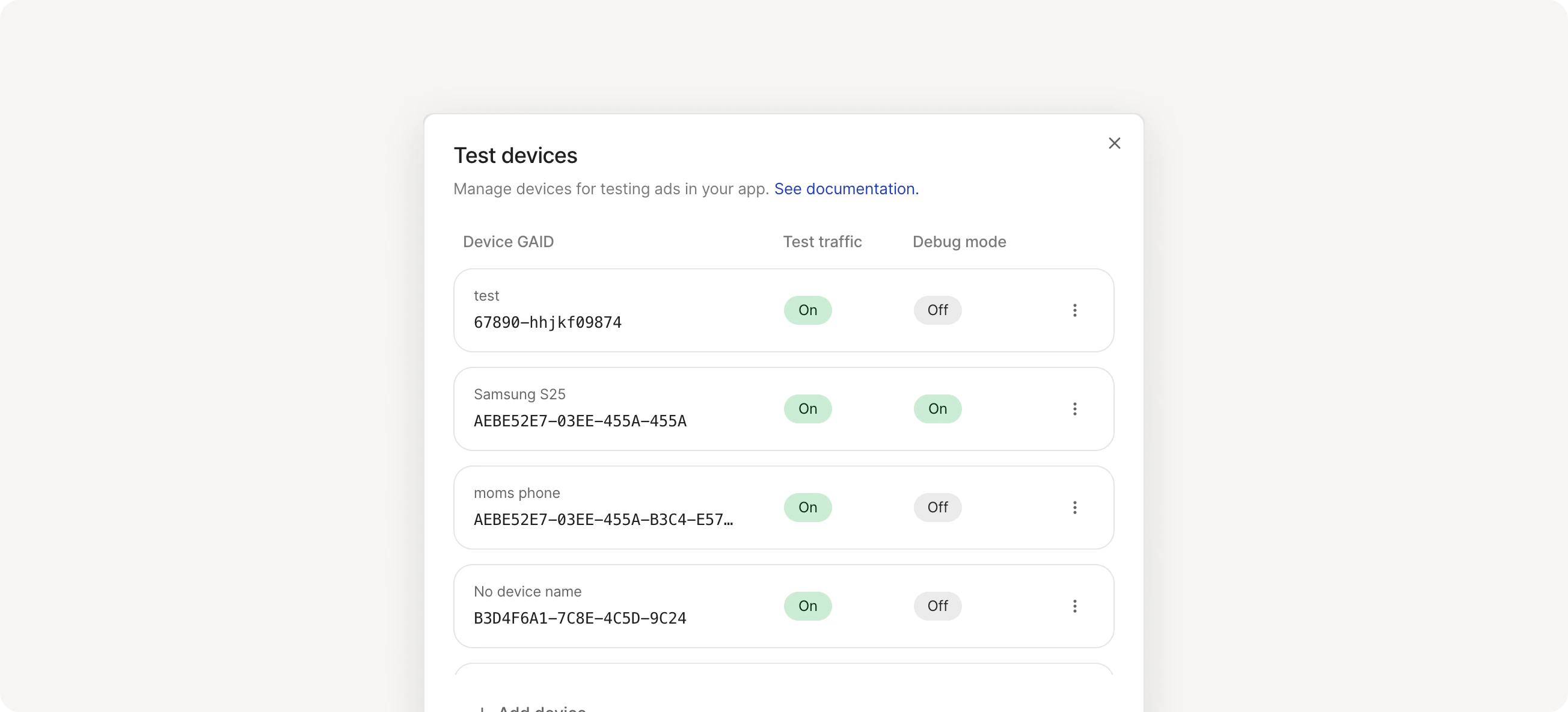
> Test devices allow you to safely test ads on specific devices without affecting your revenue data. Register devices by their identifier (IDFA for iOS, GAID for Android) to control test traffic and debug logging.
# Add a test device
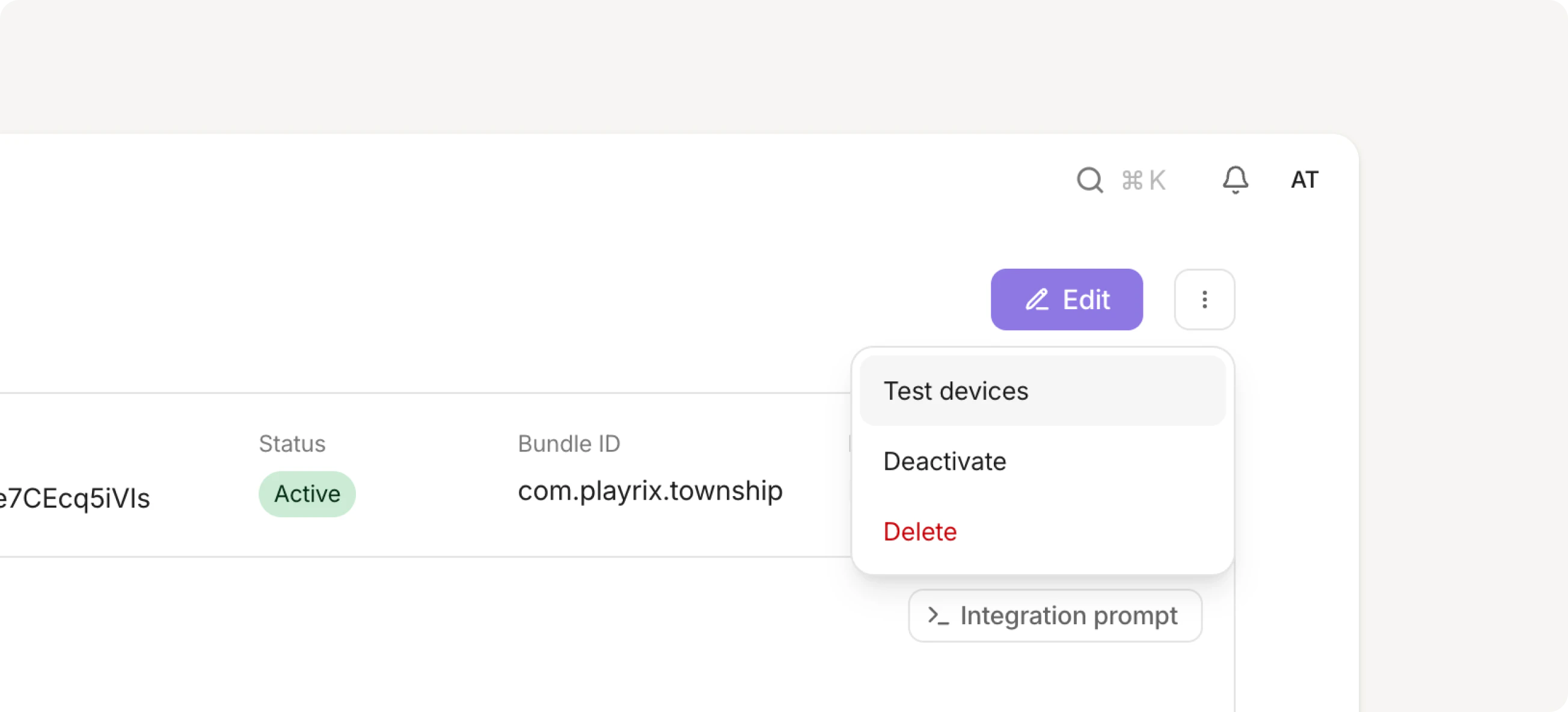
To access test devices, navigate to your app page, click the three dots `⋮` menu in the top right, and select Test devices.
1. Click **Add device**
2. Enter your **Device IFA**
3. Optionally add a **Device Name** to make the device easier to identify
4. Select your platform (iOS or Android)
5. Configure your settings using the toggles (see below)
6. Click **Add**
Changes take effect when the device starts a new app session, not immediately.
# Configure
Control how each test device behaves using these settings:
| Setting | Description |
| ------------ | ------------------------------------------------------------------------------------------------------------------------------- |
| Test Traffic | When on: Device receives test ads only and data is excluded from revenue reports. Use for visual QA and ad integration testing. |
| Debug mode | When on: Device gathers diagnostic logs for troubleshooting integration issues. |
# Finding your device ID
You need your device's advertising identifier to register it as a test device.
### **iOS (IDFA)**
Finding your IDFA requires a third-party app. My Device IDFA by AppsFlyer and Adjust Insights by Adjust are both available free on the App Store.
### **Android (GAID)**
1. Open **Settings** on your Android device
2. Tap **Security and privacy** → **Ads**
3. Your GAID appears under **Advertising ID**
 # Add a test device
To access test devices, navigate to your app page, click the three dots `⋮` menu in the top right, and select Test devices.
# Add a test device
To access test devices, navigate to your app page, click the three dots `⋮` menu in the top right, and select Test devices.
 1. Click **Add device**
2. Enter your **Device IFA**
3. Optionally add a **Device Name** to make the device easier to identify
4. Select your platform (iOS or Android)
5. Configure your settings using the toggles (see below)
6. Click **Add**
1. Click **Add device**
2. Enter your **Device IFA**
3. Optionally add a **Device Name** to make the device easier to identify
4. Select your platform (iOS or Android)
5. Configure your settings using the toggles (see below)
6. Click **Add**